
How to create a pickup order in Shopify POS
Updated · 6 min read
By Invenire Studios, makers of Countermade
The short answer
On Shopify POS Pro, with the POS app on version 11.3 or later, add the items, tap the Pickup all items tile, add the customer and check out. The customer pays now and Shopify holds the order until the customer returns. When it’s ready, open the order and tap Ready for pickup, then Send notification. If they’d rather pay at pickup, save the cart as a draft order instead.
What do you need before you can create a pickup order in Shopify POS?
You need POS Pro at the location, the POS app on version 11.3 or later (Shopify added register pickup orders in March 2026), Pickup in store turned on for the location in the Shopify admin, and, for the staff who prepare and hand over pickup orders, the Fulfill shipping, pickup, and delivery orders permission (formerly Fulfill shipping and pickup orders).
An admin sets that permission in the Shopify admin under Sales channels > Point of Sale. If you’re on POS Lite, see POS Lite vs Pro for counter orders.
To turn on pickup for a location:
- In the Shopify admin, go to Settings > Shipping and delivery.
- Under Additional delivery methods, click Pickup in store.
- Click the location.
- Under Location status, turn on Let customers pick up orders directly at this location.
- Under Expected pickup date, choose a processing time.
- Under Ready for pickup notification, enter pickup instructions for your customers.
- Click Save.
Location-specific pickup instructions override the general notification template. If you deliver instead, see local delivery orders in Shopify POS.
Where is the Pickup all items tile in Shopify POS?
You add the Pickup all items tile to the smart grid in Shopify POS: tap Add tile, then Action > Pickup all items > Add > Done. Tapping it in a cart starts a pickup order. The tile also shows how many orders still need preparing, and you can tap it to filter between orders to prepare and orders that are ready for pickup.
How do you create a pickup order in Shopify POS at the register?
A Shopify POS pickup order uses pickup as the delivery method, so the customer pays at checkout and the order is held until they return to collect it. Items can be in stock now or expected later, which suits made-to-order or tailored pieces.
- Add items to the cart.
- Tap Pickup all items.
- Optional: tap the pickup location name in the cart to choose another store (POS app version 11.8 or later).
- Tap Add customer, then search for a customer or create one.
- Tap Checkout and choose the payment method.
- Optional: choose how the customer gets their receipt.
The receipt shows the pickup location. Before checkout, you can also tap the Horizontal menu icon in the cart, then Add Note, enter the pickup day and anything the person preparing it needs, and tap Save. Notes show on the order details screen. For where they print, see where order notes print. For example, a tailor might note “Saturday 10 a.m., take up hems 1 inch.”
Physical items need fulfilling by hand; digital items fulfill automatically. If you’re ordering stock in first, see special orders in Shopify POS.
Can a Shopify POS pickup order be picked up at a different store?
A Shopify POS pickup order can be picked up at another of your stores on POS app version 11.8 or later: tap the pickup location name in the cart and choose another store. You need more than one location set up for pickup, and that store must have the stock for the order and be in the same country as the store taking it.
How do you mark a Shopify POS order “Ready for pickup” and notify the customer?
Open the order in Shopify POS, tap Ready for pickup, set the items aside, then tap Send notification, and Shopify lets the customer know their order is ready to be picked up. You can print a pickup slip at the same step.
- In Shopify POS, tap the Order icon.
- Tap the order.
- Tap Ready for pickup.
- Set aside all the items for the customer.
- Optional: print a pickup slip and keep it with the order.
- Tap Send notification.
Don’t confuse this with Order Notifications under Settings in POS. Those are push alerts to staff devices, and they don’t message the customer.
Can you print a pickup slip in Shopify POS?
Shopify POS offers a pickup slip as an optional print when you mark a pickup order Ready for pickup. Keep the slip with the set-aside items. It carries a QR code, so when the customer arrives you scan it in Shopify POS to find the order quickly.
If the back room needs a printed item list for a paid pickup order, print a pick list from the Orders page in the Shopify admin with the Shopify Order Printer app. Don’t use a gift receipt as the item list: since August 11, 2026, Shopify’s new template leaves line items off gift receipts (see gift receipts without prices).
How do you “Mark as picked up” in Shopify POS when the customer arrives?
When the customer arrives, confirm the order number and their name, then tap Mark as picked up on the order. Its status changes to Fulfilled. Before you tap Done, POS offers Email pickup confirmation and Text pickup confirmation; both are optional.
- In Shopify POS, tap the Order icon and tap the order, or scan the slip’s QR code.
- Tap Mark as picked up.
- Optional: choose Email pickup confirmation or Text pickup confirmation.
- Tap Done.
How do you let a customer pay when they pick up in Shopify POS?
Save the cart as a draft order instead of creating a pickup order. A Shopify POS pickup order is paid at checkout: the customer pays now and picks up later. A draft keeps the cart and a pickup-day note (the same routine as counter pre-orders), and you check it out in Shopify POS when they return.
- Add the items to the cart and add a note with the pickup day.
- Tap the Horizontal menu icon, then Create draft order.
- When the customer returns, tap the Horizontal menu icon > Load draft order > Load to cart, then check out.
| Compared | Customer pays now | Customer pays at pickup |
|---|---|---|
| Shopify tool | Pickup order (Pickup all items) | Draft order (Create draft order) |
| Where staff find it | The Pickup all items tile (to prepare or ready) or the Order icon | Order icon > Drafts |
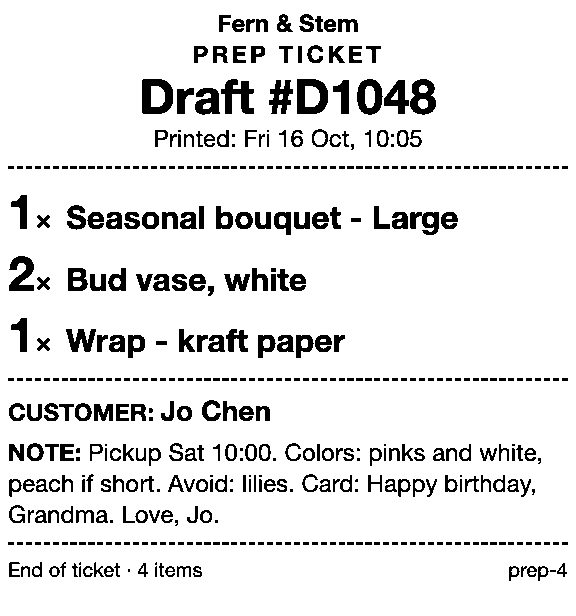
| Paper for the order | Pickup slip at Ready for pickup, or a pick list from the admin (Shopify Order Printer) | A prep ticket (see below) |
| At pickup | Scan the pickup slip, then Mark as picked up | Load to cart, then check out |
A draft isn’t a pickup order yet, so staff find it under Order > Drafts, not the pickup tile. Drafts made at other locations or in the Shopify admin load in POS too. To hold stock for a customer who hasn’t paid, see how to hold an item for a customer in Shopify POS. If the customer wants to pay part now and the rest at pickup, see deposits by Shopify plan. If you send a payment link instead, see how to let customers pick up when paying by link.
Can you print a prep ticket for an order the customer pays for at pickup?
Yes, with Prep Ticket, from Countermade. It prints a price-free prep ticket from a draft order in Shopify POS: item names, quantities, the customer and your notes. Type the pickup day in the draft’s note and it prints on the ticket.
The person making the order sees what to make and the pickup day, and no prices. For example, if a customer will pay for a cake on Saturday, the person decorating it works from the ticket, not a sticky note (see bakery order tickets in Shopify POS). For Shopify’s own ways to print a draft, see how to print a Shopify draft order from POS.
It prints through the iPad’s print dialog to a printer the iPad can reach (AirPrint); see which printers work for prep tickets. It needs Shopify POS Pro, which drafts in POS already need.
Next step
Add the Pickup all items tile now, before the next customer asks to pick up later.
Prep Ticket isn’t on the Shopify App Store yet. Get early access and we’ll email you when it’s ready to try.
Get early access to Prep Ticket
Thanks. You’re on the list, and we’ll email you when Prep Ticket is ready to try.
Common questions
Do you need POS Pro to create pickup orders in Shopify POS?
Which staff permission do you need to fulfill pickup orders in Shopify POS?
Why don’t I see the Pickup all items tile in Shopify POS?
Can I edit a pickup order in Shopify POS?
Can gift cards or subscriptions go in a Shopify POS pickup order?
Read next
About Prep Ticket- Guide How to print a Shopify draft order from POS Shopify has no Print button for drafts. Every workaround, and what each one prints.
- Guide Shopify POS: how to print an order before the customer pays Create the order now with Mark unpaid, or keep it as a draft and print that instead.
- Guide Which printers can print prep tickets from Shopify POS? Which Star and Epson printers Shopify supports, and how POS apps print to them.
- Guide Recent cart or draft order: which to use in Shopify POS Recent carts delete after 24 hours by default. Drafts last a year unedited and can hold stock.
- Guide Shopify POS receipt code editor ends January 1, 2027: what to do The code editor ends January 1, 2027. What to check, rebuild and preview before you switch.
- Guide Shopify POS gift receipt without prices: what to print now Shopify’s new gift receipt dropped its item list in August 2026. What to print instead.