
How to print a job ticket for a custom order in Shopify POS
Updated · 4 min read
By Invenire Studios, makers of Countermade
The short answer
Write the spec into the item title and note. Once the job is paid, part-paid or marked unpaid, print its receipt or an Order Printer packing slip. A job awaiting a quote or proof stays a draft, which POS can’t print. Prep Ticket, from Countermade, prints a clean, price-free job ticket from it for the bench.
What the maker needs on the ticket
The bench needs the spec, the due date and the customer, not the price. For example:
- Engraving: the wording line by line, letter case, font, position on the piece.
- Embroidery: name or logo, thread color, font, placement, garment size.
- Framing: artwork size, molding, mat, glass, where the artwork is stored.
- Printing: quantity, finished size, paper stock, one or two sides, where the file is.
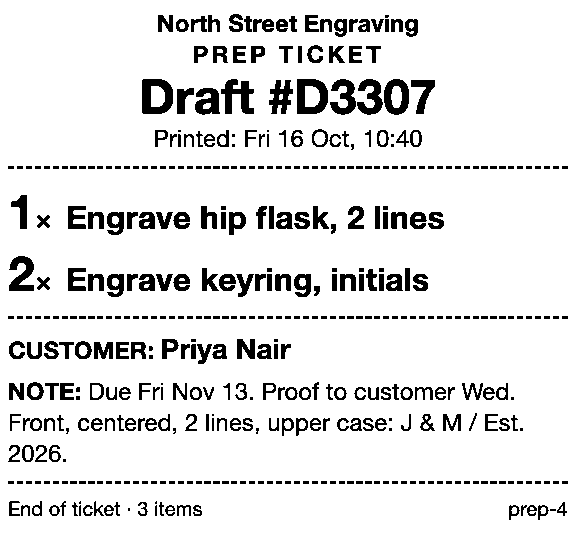
Start the note with the due date so the maker reads it first. For example: “Due Fri Nov 13. Proof to customer Wed. Front, centered, 2 lines, upper case: J & M / Est. 2026.” Then read the wording back to the customer. A ticket prints what staff typed, typos included.
Write the job into the order in Shopify POS
- Add the item. For one-off work, tap the Add custom sale tile, title it with the job (for example, “Engrave hip flask, 2 lines”), enter the price or quote and tap Add to cart. Staff need the “Add custom sales” permission.
- Add the customer to the cart.
- Tap the ⋯ (More actions) icon at the top of the cart, then Add note. Type the spec and tap Save. The note covers the whole order, not one item, so the whole job goes in it.
- If the customer pays in full but collects later, first tap the Pickup all items tile (POS Pro). To ring it up now, tap Checkout and choose how they pay from the table below. If the job waits on a quote or proof, tap ⋯ (More actions), then Create draft order (also POS Pro); find it again under the Order icon > Drafts.
Paid, deposit, unpaid or draft: what Shopify lets you print
| The customer… | Shopify creates | How to get it on paper for the bench |
|---|---|---|
| Pays in full, collects later | A pickup order (Pickup all items tile; POS Pro, with “Pickup in store” turned on) | Its POS receipt on a receipt printer, or a gift receipt, which leaves out the amount (test-print one to check it shows the note). Or an Order Printer packing slip, pick list or invoice |
| Leaves a deposit | A partially paid order (Split payment > Mark as partially paid) | Its POS receipt (prices shown) or an Order Printer document |
| Agrees the job and pays on collection | An unpaid order (Mark unpaid at checkout) | Its POS receipt (prices shown) or an Order Printer document |
| Still has to approve a quote or proof | A draft order (Create draft order) | No print option on the POS draft screen. In the admin, your browser can print the draft page, prices included. See every native way to print a draft. |
To print or reprint a receipt, tap the Order icon, the order, then Receipt or Print gift receipt; both need a supported receipt printer. For Order Printer, install Shopify’s free app, add its Order Printer tile to the POS smart grid, tap it, select the order and the documents, then tap Print documents and Print. Its default packing slip has no prices, which suits the bench, but no note either: add the note to the template first (the bakery order tickets page shows how).
Mark unpaid records the sale “as a 0.00 payment”, so the order exists before anyone pays: right for an agreed job, not a quote the customer may never approve. How to print an order before the customer pays covers this route in full.
Shopify’s partial payments help sets two limits: some EU locations, including France, Italy and Spain, can’t mark a sale as partially paid or unpaid, and an edited partially paid order can’t take further payments. Settle the spec before you take the deposit.
Test the printout before you rely on it: where Mark unpaid works, ring up an unpaid order with no real customer on it, print its receipt or Order Printer document, check that the item titles and note appear, then cancel it in the Shopify admin.
Where Prep Ticket fits: the job saved as a draft
Prep Ticket is for the job that waits on approval but still has to reach the back: the designer needs the spec to draw the proof, or the framer holds the artwork while the customer decides. From a draft order in Shopify POS, it prints a prep ticket with item names, quantities, customer and notes, and no prices, through the iPad’s print dialog to a printer the iPad can reach (AirPrint). The job ticket near the top of this page shows the layout.
Prep Ticket works with drafts made in POS or the Shopify admin, on Shopify POS Pro. The Prep Ticket app page shows how it works at the counter.
Get early access to Prep Ticket
Prep Ticket is from Countermade, the Shopify POS apps from Invenire Studios. Sign up for early access and we’ll email you when it’s ready to try.
Thanks. You’re on the list, and we’ll email you when Prep Ticket is ready to try.
Common questions
Where should I put the engraving wording or job details in Shopify POS?
Can Shopify POS print a custom order before the customer pays?
Do I need Shopify POS Pro for custom orders?
Read next
About Prep Ticket- By trade How to print bakery order tickets in Shopify POS Get cake orders to the baker without prices, whether paid, part-paid or paid at pickup.
- Guide Shopify POS: how to print an order before the customer pays Create the order now with Mark unpaid, or keep it as a draft and print that instead.
- Comparison Which order printer apps print Shopify draft orders? Order Printer Pro, Printly and MS Order Printer compared, and when a ticket fits better.
- By trade How to print a florist order ticket in Shopify POS Get the arrangement, card message and pickup time to the workroom without the price.
- Guide How to print a Shopify draft order from POS Shopify has no Print button for drafts. Every workaround, and what each one prints.
- Guide Which printers can print prep tickets from Shopify POS? Which 80mm Star and Epson printers Shopify supports, and how POS apps print to them.