
How to take pre-orders at the counter in Shopify POS
Updated · 6 min read
By Invenire Studios, makers of Countermade
The short answer
Shopify’s built-in pre-order option works online only, not in POS, though some pre-order apps add a POS tile. For counter and phone orders due on a set day, save a draft order (a POS Pro feature) with the collection date in its note. The customer pays when they collect, or ahead by checkout link. To take full payment now, make it a pickup order; for a deposit, mark the sale partially paid.
Can Shopify POS take pre-orders?
Not with Shopify’s built-in pre-order option. Shopify’s developer documentation says pre-orders can’t be used through POS or on draft orders. A counter pre-order is an order for a later date, so a POS draft order with the collection date in its note does the job.
Online, Shopify’s pre-order products need a pre-order app, and some, such as STOQ and PreProduct, list Shopify POS support too. If one customer wants one item you’re out of, that’s a special order instead, covered in how to take special orders in Shopify POS.
How do I take a pre-order in store or by phone in Shopify POS?
Save the cart as a draft order, with the collection date at the start of its note. The note stays on the draft, so staff see the date every time they load the order. Phone orders follow the same steps.
- Add the items to the cart and add the customer.
- Tap the menu icon (⋯) > Add note. Type the collection date and time first, then anything the maker needs to know. For a phone order, such as an Easter cake, read the note back to the caller. Tap Save.
- Tap ⋯ > Create draft order.
- If the order changes, load the draft, make the change, then tap ⋯ > Update draft order.
Don’t park a pre-order in the cart. Recent carts hold no stock and delete themselves after a day by default, as the recent carts vs draft orders guide explains.
Write dates the same way every time (for example, “COLLECT 24 DEC AM”) so they’re easy to spot. Every other draft action is in Shopify POS draft orders.
Should a pre-order customer pay now, pay a deposit, or pay when they collect?
Keep the order as a draft if you’ll be paid later, either at collection or ahead by link. Make it a pickup order if the customer pays in full now. For a deposit, check out, mark the sale partially paid, then collect the balance when they come in.
| Setup | How in Shopify POS | Paid when | Good for | Watch out |
|---|---|---|---|---|
| Draft order | ⋯ > Create draft order | At collection (Load draft order > Load to cart) or ahead by checkout link | Orders that may change; phone orders | POS Pro; the payment link fails if an item has no stock and can’t be oversold |
| Pickup order | Pickup all items tile > Add customer > Checkout | Now, at checkout | Fixed orders paid at the counter | POS Pro; put the collection date in the note |
| Deposit order | Split payment > Mark as partially paid | Part now, the rest with Collect payment | High-value seasonal orders | Not available in some EU locations; no further payments after a refund, exchange or edit |
Pickup and deposit orders have their own guides: pickup orders in Shopify POS and taking deposits on each Shopify plan.
How do I send a pre-order customer a link to pay ahead?
Open the draft and share its checkout link. Draft orders can be viewed across Shopify channels, so open the one you saved in POS from the Shopify admin or the Shopify app on your phone. Then choose Share > Copy link (in the app, the menu icon first) and paste it into a message.
In POS itself, open Drafts and tap the vertical menu icon next to the draft > Email to customer so the customer can review the order and check out online. To text the link instead, copy it as above; how to send a Shopify payment link by text has the steps.
Before you send it, check stock, pickup and price.
- Stock. If an item has no stock when the customer checks out, Shopify’s help says customers “are notified that the item is out of stock and can’t complete the sale.” For goods you haven’t received yet, wait until the stock is in and reserve it on the draft (Reserve inventory in the admin, Reserve items in the Shopify app), then send the link.
- Pickup. The customer chooses a shipping method at checkout. Turn on Pickup in store for your location under Settings > Shipping and delivery so collection is offered, as shipping and local pickup on payment links shows.
- Price. Shopify’s draft invoice page says “Product prices are locked by default,” so the price you quoted holds (why a draft’s price can still change). For example, an order taken in November keeps November’s price even if you raise the product’s price in December.
Don’t mark the draft as Paid until the money has arrived.
How do I print a pre-order for the kitchen or workroom in Shopify POS?
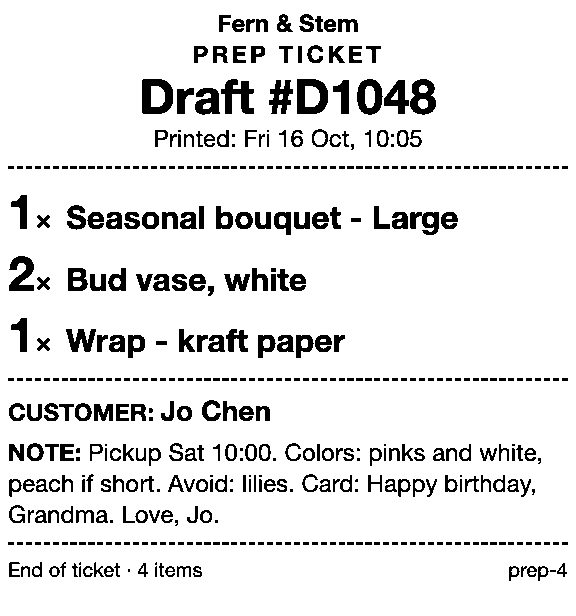
You can’t print a pre-order from the Shopify admin while it’s still a draft: Shopify’s printing help says “Draft orders can’t be printed.” A pre-order paid on collection stays a draft until it’s checked out. Natively, staff read the items and note on screen in Shopify POS. Prep Ticket, from Countermade, prints a price-free ticket from the draft in Shopify POS.
Pickup and deposit orders are orders rather than drafts once checked out, so the admin can print them with Print > Print order page.
Printing a draft order from POS covers every native workaround. For who reads a ticket and what goes on one, see what a prep ticket is.
How do I hand over pre-orders on collection day in Shopify POS?
On collection day, open Drafts in Shopify POS, find the customer’s order, load it into the cart and take payment. Pickup orders, already paid at the counter, just need Mark as picked up, and deposit orders take the balance with Collect payment (find both under Orders).
- Tap the Order icon > Drafts.
- Tap the draft, then Load to cart.
- Check the items against the note, then take payment as usual.
To find the day’s orders, open each draft and check the date at the start of its note, or sort printed Prep Tickets into a pile for each day.
Once a customer pays through the draft’s checkout link, Shopify turns the draft into an order marked as paid, so look under Orders, not Drafts. If the customer paid ahead any other way, delete the saved draft once the payment shows (in Drafts, the vertical menu icon next to it > Delete draft), so no one loads it and charges them again.
The same routine, by trade: butcher Christmas orders, bakery order tickets, florist phone orders, florist order tickets, gift basket phone orders and catering orders.
How do Prep Ticket and Pay Link help with pre-orders?
The native routine gets awkward at two points: drafts can’t be printed, and finding the day’s orders means opening each one. Prep Ticket and Pay Link are from Countermade, the Shopify POS apps from Invenire Studios. Both need Shopify POS Pro.
Prep Ticket prints a price-free ticket from each pre-order’s draft in Shopify POS, with item names, quantities, the customer and the note with the collection date. The bench works from the ticket, not the POS screen. It prints through the iPad’s print dialog to a printer the iPad can reach (AirPrint), and works on drafts made in POS or the Shopify admin.
Pay Link makes the pay-ahead link right from the POS cart, so the customer pays the full amount on Shopify’s own secure checkout. When the stock is in, load the pre-order into the cart and make the link there. Before staff share the link, they see the total up front, with a note when checkout will add shipping. Tap twice by mistake and Pay Link still makes one link, not two, and staff can see later whether the link has been paid. Staff never see or type card details.
Get early access to Prep Ticket and Pay Link
Take your next pre-order as a draft with the date in the note. Prep Ticket and Pay Link aren’t on the Shopify App Store yet. Sign up for early access and we’ll email you when they’re ready to try.
Pick one app or both
Thanks. You’re on the list, and we’ll email you when each app is ready to try.
Common questions
How long can a pre-order sit as a draft in Shopify POS?
Can I take a deposit on a pre-order in Shopify POS?
Why can’t my customer pay a draft order link for an out-of-stock item?
How do I take Christmas pre-orders in Shopify POS?
Do pre-order apps work in Shopify POS?
Read next
About Pay Link- Guide How to take phone orders on Shopify without asking for card details Send the caller a checkout link by email or text, set pickup, then check it’s paid.
- Guide How to send a Shopify draft order payment link by text message Shopify only emails invoices. Copy the checkout link and text it from your own phone.
- Guide Shopify payment links explained: draft orders, Quick Sale and POS Every way Shopify bills by link, what each creates and where the paid order lands.
- Guide Taking a card by phone in Shopify: key it in or send a link Key a caller’s card or send a checkout link: when each fits, and how to turn keying off.
- Guide How to create a local delivery order in Shopify POS Local delivery at the POS checkout: the taps, the rules, and how to deliver phone orders.
- Guide How to take a deposit on a Shopify order, plan by plan Which deposit routes work on your Shopify plan, with the exact POS and admin steps.