
How to create a local delivery order in Shopify POS
Updated · 7 min read
By Invenire Studios, makers of Countermade
The short answer
Since September 28, 2026, Shopify POS Pro locations can create local delivery orders at checkout on POS 11.16 or later. Turn on local delivery for the location in the admin. In the cart, add the customer and an address inside your zones, tap Add shipping > Shipping > Local delivery, confirm their phone number and check out. For a caller, send a draft order’s checkout link, where Local delivery is offered and they pay.
What do you need to set up local delivery in Shopify POS?
You need POS Pro at the location, POS 11.16 or later, local delivery turned on for that location in the Shopify admin, and a customer address inside one of your zones. Staff need Create shipping and delivery orders (previously called Ship to customer) to create the order, and Fulfill shipping, pickup, and delivery orders to deliver it.
To turn on local delivery:
- Go to Settings > Shipping and delivery.
- Under Additional delivery methods, click Local delivery, then the location you deliver from.
- Turn on Deliver orders to customers directly from this location.
- Under Delivery zones, choose Use postal codes and click Add zone, or choose Set a delivery radius.
- Enter a Delivery price. Enter 0 for free delivery. You can also set a Minimum order price.
- Click Save.
POS uses the same zones and rates as your online store.
How do I create a local delivery order at the Shopify POS checkout?
Choose Local delivery under Shipping once the customer and their address are in the cart, then confirm their phone number. You take payment as usual, and the delivery fee and address show in the cart, on the receipt and on the customer-facing display.
- Add the products to the cart.
- Add the customer.
- Tap Add shipping and pick the address, or tap Add shipping address.
- Tap Shipping, select Local delivery, and tap Save.
- On Confirm delivery details, confirm the phone number, add any delivery instructions, such as the day and time you agreed, and tap Save.
- Tap Checkout and take payment.
Why is Local delivery not showing in Shopify POS?
Local delivery appears under Shipping only when the location is on POS Pro, the app is 11.16 or later, local delivery is on for the location, the customer’s address is inside one of your zones, every item is being delivered, and the staff member can create shipping and delivery orders. Check these in order:
- App version: update Shopify POS to 11.16 or later.
- Plan: move the location to POS Pro. See Shopify POS Lite vs Pro for counter orders.
- Location: turn it on under Settings > Shipping and delivery > Local delivery.
- Customer: add a customer with a shipping address to the cart first.
- Address: it must be inside one of the location’s zones, in the location’s country (for a radius zone, also the same state or province).
- Cart: every physical item must be delivered, and one order can’t mix local delivery with shipping or pickup. Ring up take-home items separately.
- Staff role: add Create shipping and delivery orders.
What’s the difference between local delivery and shipping in Shopify POS?
Local delivery is for nearby addresses: you arrange the drop-off and charge your zone’s price. Shipping sends the order anywhere your shipping rates cover, and the customer can take some items home in the same order. Both need POS Pro at the location.
| Compared | Local delivery | Shipping |
|---|---|---|
| Who takes it to the customer | You, your staff or a third-party delivery service you arrange | You ship it, using your shipping rates |
| Where it can go | Inside your delivery zones, in the location’s country | Addresses your shipping rates apply to |
| What it costs the customer | Your zone’s delivery price, or free | A shipping rate from your list, or a custom rate |
| Items carried out in the same cart | No, every physical item is delivered | Yes |
| How you finish it in POS | Prepare for delivery, then Mark as delivered | Ship from store |
For pickup, see the guide to Shopify POS pickup orders.
How do I prepare, deliver and mark a POS local delivery order as delivered?
Open the order in POS, tap Prepare for delivery, pack it, and tap Mark as ready for delivery. After the drop-off, Mark as delivered emails the customer a delivery confirmation and sets the order to Fulfilled. Skip it and no automatic delivery notification goes out.
- In Orders, filter by DELIVERY TYPE > Local delivery, or add the View local delivery orders tile to your smart grid.
- Open the order, read any delivery instructions, and tap Prepare for delivery.
- Optional: tap Print delivery slip. This needs a receipt printer set up; if it won’t print, see receipt printer not printing.
- Pack the items, then tap Mark as ready for delivery.
- Once it’s delivered, tap Mark as delivered.
How do I cancel a local delivery order from Shopify POS?
Cancel it in the Shopify admin. Cancelling the order refunds the customer, to the original payment method, as store credit or later, and returns the items to stock. To keep the order and stop only the delivery, cancel the delivery instead: the order moves from Ready for delivery back to Unfulfilled.
To cancel the order:
- In Orders, open the order.
- Click More actions > Cancel order.
- Choose how to refund: Original payment method, Store credit or Later.
- Leave Restock inventory on to return the items to stock.
- Click Cancel order.
You can’t cancel a partially fulfilled order; cancel the fulfillment first.
Can Shopify POS book Uber or a courier for local delivery?
With local delivery, you choose who delivers: you, your staff, or a third-party delivery service you arrange. For online orders, Shopify Plus stores in the US, Canada and France can also use Uber Direct on POS for same-day delivery with live tracking.
How do I take a local delivery order over the phone when the customer pays later?
The POS checkout takes payment there and then, so a caller needs a draft order and a checkout link instead, as with any phone order without card details. Local delivery is offered at checkout to addresses inside your zones, and the customer pays there (how to tell when it’s paid).
Build the draft one of two ways:
- In the Shopify admin (on desktop): create a draft, add the customer and address, click Add shipping or delivery, select Local delivery, click Apply, then send the invoice.
- In POS: build the cart, add the customer and their address, and tap … > Create draft order. To send it, tap the Order icon > Drafts, and next to the draft tap ⋮ > Email to customer. See POS draft orders.
To get the link onto the caller’s phone, see how to send a draft’s payment link by text.
An invoiced draft’s shipping rates don’t update when you add items, so add everything before you send it. The delivery address also sets the tax: see why the tax on a payment link changes. At checkout, local delivery is offered only when the location has stock for the whole order and the customer doesn’t pay with Apple Pay, Google Pay, Amazon Pay or PayPal at the first step (Shop Pay works). For what checkout can add, see shipping and pickup on payment links. For worked examples, see phone orders for furniture stores and gift basket phone orders.
How can staff get a phone order’s payment link straight from the POS cart?
With Pay Link, from Countermade, staff get the payment link right where they built the order: the POS cart. They see the total before anything goes out, and later whether the link has been paid. The link opens Shopify’s own secure checkout, where the customer enters their delivery address and pays. Staff never see or type card details.
When checkout will add shipping, the total comes with a note saying so. If staff tap twice, they still get one link, not two. Turn on local pickup at the store so a caller who’d rather collect can choose it at checkout.
How do I print a packing ticket for a phone delivery order before it’s paid?
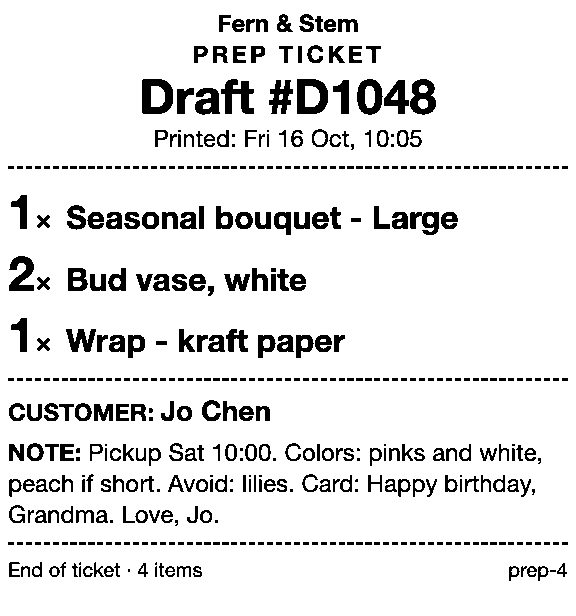
Shopify’s Print delivery slip comes once there’s an order, from Prepare for delivery. Before then, Prep Ticket, also from Countermade, prints a price-free prep ticket from a draft order in Shopify POS, for drafts made in POS or the Shopify admin. It lists the items, quantities, customer and notes, so type the delivery instructions into the notes.
It prints through the iPad’s print dialog to a printer the iPad can reach (AirPrint).
 Page 1 of 1OptionsPrinterNo Printer Selected ›Copies1
Both apps need Shopify POS Pro.
Next step
Turn on local delivery for your store’s location in the Shopify admin, then try it on your next sale that needs delivering.
Neither Pay Link nor Prep Ticket is on the Shopify App Store yet. Get early access and we’ll email you when each is ready to try.
Pick one app or both
Thanks. You’re on the list, and we’ll email you when each app is ready to try.
Common questions
Does Shopify POS have local delivery?
Can I do local delivery on Shopify POS Lite?
Can one POS order have some items delivered and some taken home?
Can I print a delivery slip from Shopify POS?
How far can I deliver with Shopify POS local delivery?
Read next
About Pay Link- Guide How to take phone orders on Shopify without asking for card details Send the caller a checkout link by email or text, set pickup, then check it’s paid.
- Guide How to send a Shopify draft order payment link by text message Shopify only emails invoices. Copy the checkout link and text it from your own phone.
- Guide Shopify payment links explained: draft orders, Quick Sale and POS Every way Shopify bills by link, what each creates and where the paid order lands.
- Guide Taking a card by phone in Shopify: key it in or send a link Key a caller’s card or send a checkout link: when each fits, and how to turn keying off.
- Guide How to take pre-orders at the counter in Shopify POS Shopify pre-orders are online only. Here’s the POS routine for dated counter and phone orders.
- Guide How to take a deposit on a Shopify order, plan by plan Which deposit routes work on your Shopify plan, with the exact POS and admin steps.