
Which printers can print prep tickets from Shopify POS?
Updated · 5 min read
By Invenire Studios, makers of Countermade
The short answer
Shopify POS has no kitchen printer type, only a set list of 80mm Star and Epson receipt printers. Drafts have no print option, so a price-free draft ticket takes an app. Prep Ticket, from Countermade, prints one through the iPad’s print dialog to an AirPrint printer. Auto-printing online orders is a different job.
The receipt printers Shopify POS supports
In Shopify POS, a kitchen or workroom printer is another receipt printer from Shopify’s supported list. Shopify says “Shopify POS only supports 80mm receipt paper”, so 58mm printers are out, and impact “kitchen printers” such as Epson’s TM-U220II aren’t on the list.
If you’re buying
| Printer | Connections on an iPad |
|---|---|
| Star Micronics TSP143IV-UEWB | USB through the Shopify POS Hub, Bluetooth, Wi-Fi or Ethernet (LAN) |
| Epson TM-m30III (Shopify sells it as the OmniLink) | USB through the Shopify POS Hub, Bluetooth or Ethernet (LAN) |
Shopify sells both in the US (US$289 each, as of October 2026), Canada, Belgium, the Czech Republic, Denmark, Finland, Germany, Ireland, Luxembourg, the Netherlands, Spain, Switzerland and the UK; Italy gets the FP-81 II RT bundle. In Australia, New Zealand and Singapore, the TM-m30III is the only printer Shopify sells new.
If you already own one
Shopify still supports all of these. For the models it connects by USB on an iPad, see the connection checks below.
- Star TSP143IVUE: Ethernet or USB; Wi-Fi with Star’s MCW10 adapter.
- Star TSP143III: the LAN, W (Wi-Fi), BI2 (Bluetooth) and U (USB, through the Shopify POS Hub) models.
- Star TSP650II: Bluetooth.
- Also on the list: the Star mPOP and mC-Print3; the Epson TM-m30II and FP-81 II RT; and Epson’s T20 and T88 series (TM-T20II and III, TM-T88IV to VII).
Shopify no longer sells the TSP143IVUE, the TSP143III LAN, W and BI2, or the mPOP; the mC-Print3, T20 and T88 series come from third-party sellers. A Star LAN printer marked TSP100 on the front shows the range, not the model, so check the label (see Shopify’s supported printers page).
Check the connection before you buy
- USB on an iPad goes through the Shopify POS Hub for the TSP143IV-UEWB, TM-m30III, TSP143IIIU, mC-Print3, T20 series and T88 series. A direct USB-C cable to the TSP143IV-UEWB or TM-m30III works only on Android.
- The TM-m30III’s Wi-Fi works only with Android devices, including POS Go.
- LAN printers plug into your router on the iPad’s network, not into the POS Hub’s Ethernet port.
- To share a printer between POS devices, use a network connection. Shopify says a TSP143IV-UEWB can be shared on LAN or Wi-Fi, not Bluetooth or USB, and a TM-m30III over a network (Ethernet, on an iPad).
Add the printer in Shopify POS
Shopify’s steps for a LAN printer (for other connections, see Shopify’s page for your model):
- Plug the printer into power, load an 80mm roll and connect it to your router.
- In Shopify POS, tap the Connectivity icon.
- Tap + Add hardware > Receipt Printer. The first time you set up an Epson TM-m30III on LAN, tap Epson TM-m30III > LAN and follow the on-screen steps.
- Under Available network printers, tap your printer model.
- Optional: tap Print test receipt.
A back-room printer pairs the same way. But POS’s own printing goes to the default receipt printer (Connectivity icon > Hardware > your printer > Default receipt printer), and it prints receipts, not tickets.
What Shopify POS prints on its own
The native workaround is an extra receipt. On a POS Pro location, set Settings > Orders > Printed receipts > Number of receipts printed to 2 (Shopify’s printing options), and every completed sale prints an extra receipt from the default printer to take to the back. If the back shouldn’t see the total, tap Orders, open the order and tap Print gift receipt, which Shopify says “doesn’t contain the amount spent”. Both need a completed sale.
There’s no POS setting for a kitchen or order ticket, and the draft screen in POS offers Load to cart, Email to customer and Delete draft order, but no print option.
Or skip the draft: Mark unpaid at checkout (not allowed at some EU locations) creates the order, and its receipt prints with prices. Printing an order before the customer pays covers that route and a printout without prices; printing a Shopify draft order from POS covers every native route for drafts, including the admin’s.
How POS apps print tickets
Until July 2026, Shopify’s print tool for POS apps could only open the device’s print dialog, which Shopify says “cannot target dedicated receipt printers”. Since Shopify’s July 2026 update, an app can send a ticket straight to a receipt printer when:
- The app supports it. Apps not yet updated keep using the print dialog.
- You’re on Shopify POS 11.11.0 or later. Earlier versions show apps no printers.
- The printer is connected to POS on the device that prints, in practice paired under the Connectivity icon.
Otherwise, an app using Shopify’s print tool opens the system print dialog: AirPrint on an iPad, Android’s print service on Android. Tap No Printer Selected, choose the printer, then tap Print at the top right (it may show as a printer icon).
Apple’s AirPrint help page says the printer must support AirPrint over Wi-Fi or a wired network and share the iPad’s Wi-Fi network, so a Bluetooth-only printer can’t use it; check that yours supports AirPrint. Shopify doesn’t name which printers apps can reach, so ask an app’s maker which they’ve tested before you buy.
Auto-printing online orders is a different job
“Kitchen printer” can also mean online orders printing automatically in the back, a job for an auto-printing app such as PrinterCo. Café apps POS Cafe and Simmer handle modifiers and prep areas and print to the receipt printer set up in Shopify POS. (PrinterCo, POS Cafe and Simmer per their listings and docs, as of October 2026.) Prep Ticket vs POS Cafe vs Simmer compares the three.
Where Prep Ticket fits
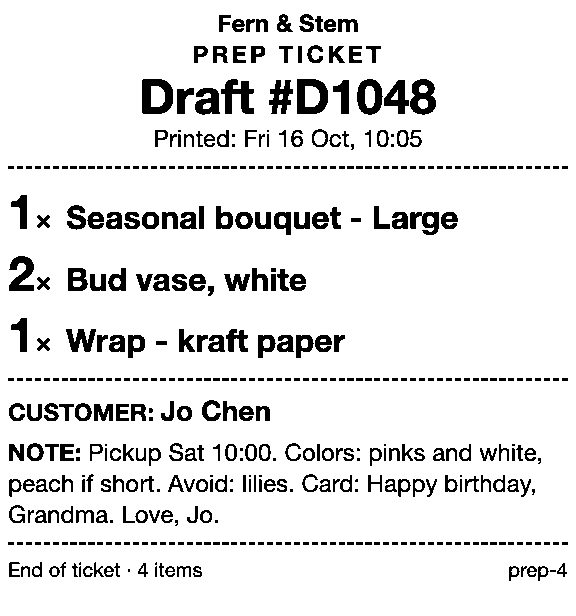
Prep Ticket is from Countermade, the Shopify POS apps from Invenire Studios. From a draft order in Shopify POS, made in POS or the Shopify admin, it prints a prep ticket with item names, quantities, the customer and notes, and no prices, for whoever makes the order. It works on Shopify POS Pro.
It prints through the iPad’s print dialog to an AirPrint printer the iPad can reach. Staff tap Open print dialog, choose the printer and tap Print.
 Page 1 of 1OptionsPrinterNo Printer Selected ›Copies1
If your iPad already prints to a printer with AirPrint, Prep Ticket prints to it too.
See it in a florist’s workroom, a bakery counter or a made-to-order shop, or read the Prep Ticket overview.
Get early access to Prep Ticket
Get early access and we’ll email you when Prep Ticket is ready to try in your store.
Thanks. You’re on the list, and we’ll email you when Prep Ticket is ready to try.
Common questions
Does Shopify POS support kitchen printers?
Can I use a 58mm receipt printer with Shopify POS?
Can I connect two receipt printers to Shopify POS?
Why can’t my POS app see my receipt printer?
Which printers does Prep Ticket print to?
Read next
About Prep Ticket- Guide How to print a Shopify draft order from POS Shopify has no Print button for drafts. Every workaround, and what each one prints.
- Guide Shopify POS: how to print an order before the customer pays Create the order now with Mark unpaid, or keep it as a draft and print that instead.
- Comparison Prep Ticket vs POS Cafe vs Simmer Two café systems and a ticket printer for draft orders, with prices as of October 2026.
- Comparison Which order printer apps print Shopify draft orders? Order Printer Pro, Printly and MS Order Printer compared, and when a ticket fits better.
- By trade How to print bakery order tickets in Shopify POS Get cake orders to the baker without prices, whether paid, part-paid or paid at pickup.
- By trade How to print a florist order ticket in Shopify POS Get the arrangement, card message and pickup time to the workroom without the price.