
How to print a Shopify draft order from POS
Updated · 5 min read
By Invenire Studios, makers of Countermade
The short answer
Shopify has no Print option for draft orders, in the admin or in POS. Make the draft an order and print that, print the draft’s admin page from your browser, or use an app that prints drafts. Or skip the workarounds: Prep Ticket, from Countermade, prints a clean, price-free ticket straight from a POS draft.
What Shopify’s help says about printing drafts
Shopify can’t print a draft, and its help says so twice. The Printing orders help page says: “Draft orders must be completed and converted to regular orders before they can be printed.” Another help page, Printing an order page, is blunter: “Draft orders can’t be printed.” The POS draft orders help lists checking out, updating, deleting and emailing a draft, but not printing.
Find the draft in Shopify POS
Drafts in POS work only at locations on Shopify POS Pro.
- Tap the Order icon, then Drafts.
- The list opens on drafts made in POS at your location. For drafts made in the Shopify admin, switch the filter from POS to Admin. For drafts saved at another location, change the location filter.
- Tap the draft. Its actions are Load to cart, Email to customer and Delete draft order.
Drafts created by other apps don’t appear here under either filter. Email to customer sends the draft to the customer, not to whoever makes the order.
Native ways to get a draft on paper
Only one native route prints the draft as it is: its admin page, from your browser. The others make the draft an order first, then print that. Shopify’s help says that once a draft is paid, “it becomes a regular order on your Orders page,” and a regular order can be printed.
Print the draft page from your browser
In the Shopify admin, go to Orders > Drafts, open the draft, and use your browser’s Print command (Ctrl+P on Windows, Cmd+P on a Mac). It needs no app and works on a draft nobody has paid for.
You get the admin screen as your browser lays it out, prices included: a copy of the page, not a ticket. It doesn’t work from the POS app.
In the admin: create the order, then print its order page
- Go to Orders > Drafts and open the draft.
- If the customer has already paid you, go to the Payment section and click Collect payment > Mark as paid > Create order.
- Open the new order from Orders, click Print, and choose Print order page.
In POS: take payment or Mark unpaid, then print
Tap Load to cart on the draft and take payment as usual. Then, with a receipt printer set up in POS, tap Print receipt on the Payment successful screen. To reprint later, open the order and tap Receipt.
If the customer will pay later, tap Mark unpaid at checkout instead (Shopify doesn’t allow it at some EU locations). That creates a real order with a 0.00 payment before the work starts, and its receipt prints like any other order’s. How to print an order before the customer pays covers the steps and the trade-offs.
Gift receipt: no prices, paid sales only
After a paid sale, tap Gift receipt on the Payment successful screen, or later open the order and tap Print gift receipt. Shopify says a gift receipt “doesn’t contain the amount spent.” It needs a receipt printer.
Shopify Order Printer: a packing slip without prices
For any order, paid or not, Shopify’s Order Printer app (free as of October 2026) prints invoices, packing slips and pick lists. Print from More actions > Print with Order Printer in the admin, or from its tile in the POS smart grid (add the tile if it isn’t there). On an iPad it prints through the print dialog to an AirPrint printer. Its default packing slip lists items and quantities, with no prices, and leaves out the order note unless you edit the template.
Apps that print draft orders
Shopify’s own Order Printer prints orders, not drafts. Neither its App Store description nor its help on printing documents mentions drafts, and merchants have asked Shopify to add them.
As of October 2026, Order Printer Pro, Printly and MS Order Printer list draft printing on their Shopify App Store pages. Each prints drafts from the admin, alongside customer documents such as invoices and packing slips, using templates you can edit. Prep Ticket vs order printer apps compares their prices, plans and which suit quotes.
Shopify gives apps a Print-menu slot only for orders and products, so look under More actions, in the Drafts list’s bulk actions or inside the app. All three listings say they work with Shopify POS, but none says it prints from the POS draft screen, so test that on a saved draft first.
Every way to print a draft, compared
| Route | Where | Still a draft? | Prices on the paper? | The catch |
|---|---|---|---|---|
| Browser print of the draft page | Shopify admin, in a browser | Yes | Yes | A copy of the screen; not from POS |
| Create the order, then Print order page | Shopify admin | No, it’s an order | Yes | You must create the order first |
| Take payment or tap Mark unpaid, then print the receipt | Shopify POS | No, it’s an order | Yes | Needs a receipt printer; Mark unpaid creates a real order now |
| Take payment, then Gift receipt | Shopify POS | No, it’s a paid order | Leaves off the amount spent | Completed sales only; needs a receipt printer |
| Create the order, then print with Shopify Order Printer | Shopify admin or the POS smart grid | No, it’s an order | Not on the default packing slip | You must create the order first |
| Order Printer Pro, Printly or MS Order Printer (as of October 2026) | Shopify admin | Yes | Depends on the template | Built for customer documents |
| Prep Ticket | Draft screen in Shopify POS | Yes | No | Needs POS Pro; prints through the iPad print dialog (AirPrint) |
Print a price-free prep ticket from the draft in POS
Every native route above either makes you create the order first or prints the prices. Prep Ticket, from Countermade, the Shopify POS apps from Invenire Studios, does neither: it turns a draft order in Shopify POS into a ticket for whoever makes the order: item names, quantities, the customer and the order notes, and no prices.
- Open the draft in Shopify POS (Order icon > Drafts).
- Tap Prep Ticket’s button, below Delete draft order.
- Check the ticket on screen, then print it through the iPad’s print dialog to a printer the iPad can reach (AirPrint).
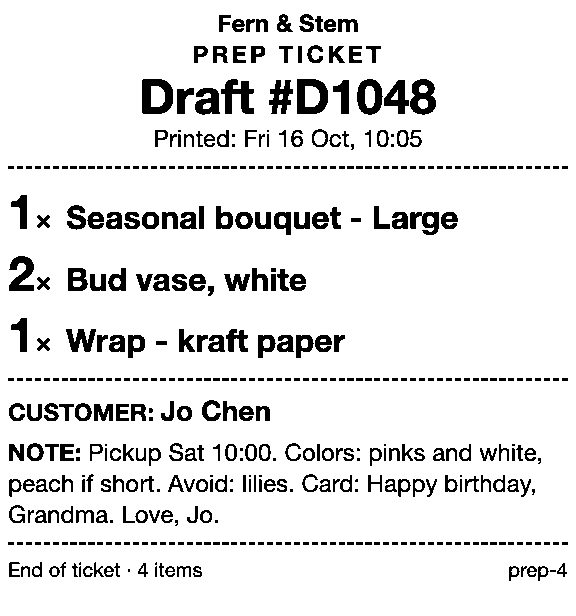
See how prep tickets work for bakery orders, florist workrooms and made-to-order shops.
Next step
For a priced quote or invoice, start with the comparison of order printer apps for draft orders. For a ticket for the people who make the order, read more about Prep Ticket.
Get early access to Prep Ticket
A ticket printed from a POS draft order, with items, quantities and notes but no prices, for whoever prepares the order. We’ll email you once, when Prep Ticket is ready to try, and nothing else.
Thanks. You’re on the list, and we’ll email you when Prep Ticket is ready to try.
Common questions
Does printing a draft order finalize it?
Can you print a draft order in Shopify?
Can Shopify POS print a draft order?
Why can’t I see a draft order in Shopify POS?
Read next
About Prep Ticket- Guide Shopify POS: how to print an order before the customer pays Create the order now with Mark unpaid, or keep it as a draft and print that instead.
- Guide Which printers can print prep tickets from Shopify POS? Which 80mm Star and Epson printers Shopify supports, and how POS apps print to them.
- Comparison Prep Ticket vs POS Cafe vs Simmer Two café systems and a ticket printer for draft orders, with prices as of October 2026.
- Comparison Which order printer apps print Shopify draft orders? Order Printer Pro, Printly and MS Order Printer compared, and when a ticket fits better.
- By trade How to print bakery order tickets in Shopify POS Get cake orders to the baker without prices, whether paid, part-paid or paid at pickup.
- By trade How to print a florist order ticket in Shopify POS Get the arrangement, card message and pickup time to the workroom without the price.