
Shopify POS draft orders: create, load, update, email and delete
Updated · 7 min read
By Invenire Studios, makers of Countermade
The short answer
In Shopify POS Pro, tap ⋯ on the cart and choose Create draft order. Load it later with Load draft order > Load to cart, change it, and save it again with Update draft order. Find or delete drafts, including ones from other locations or the Shopify admin, under Orders > Drafts, and email one from the Order icon > Load Drafts. A loaded draft can lose its discounts or its custom shipping rate, and the fixes are below.
| Action | Where | Tap |
|---|---|---|
| Save a cart | ⋯ on the cart, or the smart grid | Create draft order |
| Load a draft | Load draft order tile, or Orders > Drafts > the draft | Load to cart |
| Save changes | ⋯, after loading the draft | Update draft order |
| Email a draft | the Order icon > Load Drafts > ⋮ next to the draft | Email to customer |
| Delete a draft | Orders > Drafts > ⋮ next to the draft | Delete draft |
Do I need POS Pro to use draft orders in Shopify POS?
Yes. Shopify makes draft orders in POS available only at locations on a Shopify POS Pro subscription. A draft order is an order saved before the customer pays, and once payment is accepted, Shopify creates an order for it on the Orders page.
Since February 29, 2024, staff can create, edit and check out drafts in POS without access to the Shopify admin. If some locations run Lite, see POS Lite vs Pro for counter orders.
How do I save a cart as a draft order in Shopify POS?
When a customer has to leave before paying, tap ⋯ on the cart, then Create draft order, and ring it up when they come back. You can load it later at this location, at another POS Pro location or in the Shopify admin.
- Add the items.
- Tap the ⋯ icon on the cart, then Create draft order (older guides call it Save as a draft order).
Tip: attach the customer and an order note first so the draft is easy to find, and add the Create, Load and Update draft order tiles to the smart grid.
How do I find and load a draft order in Shopify POS?
Loading puts the saved draft back on the cart. Use the Load draft order tile, or open the draft from Orders > Drafts. POS can retrieve drafts from other locations and the Shopify admin too, and two filters decide which ones you see.
- Tap the Load draft order tile (or the ⋯ icon, then Load draft order). Or tap Orders, then Drafts, and tap the draft.
- Tap Load to cart.
In Orders > Drafts, the filters are:
- Channel (Sale type in Shopify’s help): switch between POS and Admin. Drafts made in the Shopify admin show under Admin.
- The location chip (Sale location in Shopify’s help) shows your location’s name; pick another location to see its drafts.
Why does Shopify POS say “No drafts found”?
If a draft made in the Shopify admin or at another location is missing from the list, switch the Channel filter between POS and Admin, then check the location chip. Drafts created by other apps don’t appear in POS’s Drafts list or search, so searching for one shows No drafts found. See draft orders not showing in POS.
How do I edit and update a draft order in Shopify POS?
Load the draft to the cart, change the items, the customer or the note, then save with Update draft order so you can return to it later. The draft’s own screen keeps a timeline of who created it and who last updated it.
- Load the draft and make your changes.
- Tap the ⋯ icon, then Update draft order.
How do I email a draft order to a customer in Shopify POS?
To let a customer review the cart and check out online, email the draft: tap the Order icon > Load Drafts > ⋮ next to the draft, then Email to customer. For a cart you haven’t saved yet, Send cart in the cart’s ⋯ menu emails it and keeps it as a draft in Shopify until the customer checks out.
To text a link instead, see sending a payment link by text; if they can’t pay, see when a customer can’t pay a draft order invoice.
How do I delete a draft order in Shopify POS?
In Orders > Drafts, set the filters, tap ⋮ next to the draft, then Delete draft. On the draft’s own screen, the same option reads Delete draft order. Deleting a completed draft doesn’t delete the order it created, so the order stays on your Orders page.
Why did a discount, shipping rate or draft disappear in Shopify POS?
Four things cause this: a missing staff permission, the Automatic discounts setting turned off, POS removing a custom shipping rate set on an admin-made draft, or Shopify deleting a draft left unedited for a year. The table covers the last three, and the permission fix is below.
| What you see | Why | What to do |
|---|---|---|
| An automatic discount is gone | Automatic discounts is turned off in the cart’s ⋯ menu, which removes it from the draft. | Turn it on before you save or load the draft. |
| The custom shipping rate is gone | Loading a draft made in the Shopify admin with a custom shipping rate removes that rate. | Re-add shipping from the cart’s ⋯ menu (Add shipping) before checkout. |
| A draft has vanished | Drafts created on or after April 1, 2025 are deleted after a year with no edits. Removal began April 1, 2026. Any edit resets the timer. | See draft orders deleted after one year. |
Why was the discount removed from a draft order at checkout?
The staff member lacks the Manage draft orders and Discounts permissions, which Shopify requires for admin discounts on drafts. They can still process the order, but the discount is removed. Give their role both permissions before they load the draft.
Why does stock show as Committed for a Shopify draft order?
Stock was reserved on the draft, so other customers can’t buy those units. Since August 5, 2026, Shopify shows draft-order holds as Committed instead of Reserved. That change didn’t alter what customers can buy. To reserve stock on a draft, see holding an item for a customer.
Should I use a recent cart or a draft order?
Use a recent cart to park a sale for today in the same store (recent carts delete after 24 hours by default and don’t reserve stock), and a draft order for anything longer. See recent carts vs draft orders.
What can I do with a saved draft order?
Ring it up at the counter, send it to the customer to pay, put it on paper as a price-free prep ticket for whoever prepares the order, or use it as a quote or special order. To ring it up, load it to the cart and complete the checkout. If the customer pays remotely, don’t mark the draft Paid before the money arrives (how to tell when it’s paid).
For paper, see how to print a draft order from POS and printing an order before payment. For the other uses, see quotes, special orders and pre-orders.
How do I print a price-free ticket for the back room from a POS draft order?
POS’s draft screen has no print action of its own: it offers Load to cart, Email to customer and Delete draft order. Prep Ticket, from Countermade, adds one. Tap it and the iPad’s print dialog opens; pick any AirPrint printer the iPad can reach. Whoever makes up the order gets the item names, quantities, customer and notes, without the prices.
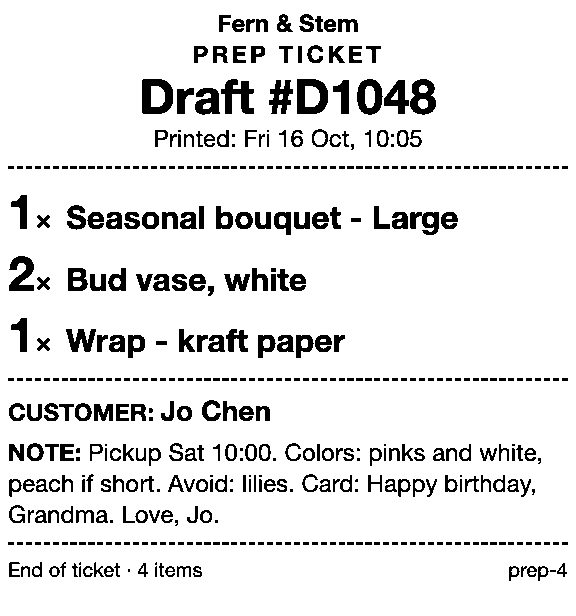
More on Prep Ticket.
How do I get a customer to pay for a Shopify POS order by link?
Natively, email a saved draft from Load Drafts (Email to customer), or share its checkout link from the Shopify admin. With Pay Link, from Countermade, staff turn the order on the POS cart into a payment link, and the customer pays in full on Shopify’s own secure checkout.
Staff never see or type card details. Pay Link shows staff the total up front, with a note when checkout will add shipping. Checkout asks for a delivery address, so turn on local pickup at the store and the customer can choose pickup (payment links and local pickup).
If someone taps twice by accident, Pay Link still makes one link, not two, and staff can see whether a link has been paid. More on Pay Link.
Next step
When the customer comes back, load their draft to the cart and ring it up.
Prep Ticket and Pay Link are Countermade’s Shopify POS apps from Invenire Studios. Both need Shopify POS Pro, and neither is on the Shopify App Store yet. Get early access and we’ll email you when each is ready to try.
Pick one app or both
Thanks. You’re on the list, and we’ll email you when each app is ready to try.
Common questions
Can I print a draft order from Shopify POS?
Can I save a cart in Shopify POS without POS Pro?
Does Shopify delete old draft orders?
Can I add a discount code to a draft order in Shopify POS?
Read next
About Pay Link- Guide How to take phone orders on Shopify without asking for card details Send the caller a checkout link by email or text, set pickup, then check it’s paid.
- Guide How to send a Shopify draft order payment link by text message Shopify only emails invoices. Copy the checkout link and text it from your own phone.
- Guide Shopify payment links explained: draft orders, Quick Sale and POS Every way Shopify bills by link, what each creates and where the paid order lands.
- Guide Taking a card by phone in Shopify: key it in or send a link Key a caller’s card or send a checkout link: when each fits, and how to turn keying off.
- Guide How to create a local delivery order in Shopify POS Local delivery at the POS checkout: the taps, the rules, and how to deliver phone orders.
- Guide How to take pre-orders at the counter in Shopify POS Shopify pre-orders are online only. Here’s the POS routine for dated counter and phone orders.