
Shopify POS order notes not printing on receipts? Where notes print
Updated · 6 min read
By Invenire Studios, makers of Countermade
The short answer
Shopify POS prints the order note when Order note is on in the receipt editor: Shopify admin > Sales channels > Point of Sale > Edit for Receipts. It prints on sales and return receipts, not gift receipts. Devices on POS earlier than 11.10 print the old template, so update every device.
How do I turn on “Order note” on Shopify POS printed receipts?
Open the receipt editor in the Shopify admin, pick the location if your locations have their own settings, and choose to display Order note in the order summary settings. The setting covers sales and return receipts, and the Customize the in-store experience section only appears once a POS device is set up.
- From your Shopify admin, go to Sales channels and open Point of Sale.
- In the Customize the in-store experience section, click Edit for Receipts.
- If you set receipts per location, choose the location your device belongs to.
- Find Order note in the Order Summary settings, under Order Totals, and choose to display it.
- Save your changes, then click Preview and choose a sale receipt from the receipt type drop-down.
Older guides and forum answers mention a “Show order note” checkbox; in today’s receipt editor the setting is called Order note. Shopify lists every receipt setting and the receipt types it applies to on its Customization options for printed receipts page.
To add the note itself in POS, open the Cart, tap the horizontal menu icon, tap Add note, type the note and tap Save.
Why is the order note still not printing after I turned it on?
If Order note is on and the note still doesn’t print, work through these six checks in order, starting with the receipt type and the POS version.
- It’s a gift receipt. The Order note setting applies only to sales and return receipts. Gift receipts leave out prices, quantities and items. Print a sale receipt instead, and see what gift receipts show now.
- The device runs POS earlier than 11.10. Older versions keep printing the previous template. Update POS on every device.
- The device is at another location. Check the settings for the device’s location.
- The note went on after the sale. You can add a note to a completed order from the POS Orders screen. Reprint and check whether it appears.
- The order has no note. If staff didn’t tap Save, nothing was stored. Order notes display on the order’s details screen in POS.
- Your location isn’t on the plan Shopify lists. If Order note isn’t in your receipt editor, check the location’s POS subscription. Shopify’s printed-receipts help says the visual editor is on all POS plans, but its feature table lists custom printed receipts under POS Pro.
Why did my order notes disappear from Shopify POS receipts?
Two changes can take a note off the receipt: moving from custom receipt code to the visual editor, and a Shopify Flow that writes the order number into the note, because Flow’s Update order note action replaces the note by default.
If your note printed through custom Liquid code, check whether moving to the visual editor flagged your custom note line for you to rebuild: Shopify’s migration guide says customizations that can’t convert automatically are flagged. If it did, turn on Order note instead. While a shop stays on the code editor, the note prints only if the template’s code includes order.note. Shops still on the code editor are moved automatically on January 1, 2027. More in what the code editor’s end means for your receipts.
Because printed receipts show the receipt number, not the order number, merchants have shared a Flow that copies the order number into the note. In December 2023 a merchant reported in the Shopify Community that it replaced the notes customers needed to see. Start the Note field with {{order.note}} to add to the note instead.
How do I test-print a Shopify POS receipt with the order note?
Make a test sale with a note, then reprint its receipt from POS. Preview checks the receipt layout. A reprint of a real sale with a note is the proof. If the setting is on but the reprinted receipt has no note, go back to the six checks above.
- In POS, add a note to a cart (Add note, then Save) and complete a test sale.
- In the receipt editor, click Preview and select the receipt type to check the layout. With a receipt printer connected to Shopify POS, print a test receipt too.
- In POS, open the test order from the Orders screen, tap Receipt, choose the sale, then print.
- Repeat on each device and location.
If nothing prints at all, see Shopify POS receipt printer not printing.
Where do Shopify POS order notes print, and where don’t they?
The order note prints on POS sales and return receipts once Order note is on, and on Shopify Order Printer’s default invoice. It doesn’t print on gift receipts. Packing slips print it only when the template includes it, and Order Printer’s default packing slip leaves it out.
| Printout | Does the note print? | What to do |
|---|---|---|
| POS sales or return receipt | When Order note is on | Turn it on; update POS on every device |
| POS gift receipt | No | For a card message, see printing a gift message |
| Shopify admin packing slip | Only if the template uses order.note |
Edit the template, then Preview with an order that has a note |
| Shopify Order Printer invoice | Yes, in the default template | Nothing to change |
| Shopify Order Printer packing slip | Not in the default template | Add the note to the template |
| Draft order | No. Shopify can’t print drafts | Print a prep ticket from the draft |
| Prep ticket (Prep Ticket, from Countermade) | Yes, with items, quantities and customer, no prices | Print it from the draft in POS (see below) |
For notes on one item rather than the whole order, see adding notes to individual items.
Admin packing slip. Go to Settings > Shipping and delivery, find the Documents section and click Packing slip template. Click Preview, search for an order that has a note, and check the note shows before you edit anything.
Shopify Order Printer. This free app by Shopify (as of October 2026) prints invoices and packing slips from editable templates, and doesn’t customize POS receipts. Go to Apps > Order Printer, click Templates, click the template’s name, edit the code, click Preview, then Save. For other document apps, see which order printer apps print draft orders.
For example, this line prints the note only when the order has one, in either template:
{% if order.note %}{{ order.note }}{% endif %}
How do I print an order note before the customer pays?
Use Mark unpaid at checkout, where your location allows it: some EU locations, such as France, Italy and Spain, can’t mark a sale unpaid. Shopify processes the order as a zero-amount payment that can be paid for later, so it’s an order you can print a receipt for. It does create a real order before anyone has paid. The steps are in printing an order before the customer pays. To keep it a draft, print a price-free prep ticket from it (see below).
Shopify can’t print a draft order: its help says drafts must be completed and converted to regular orders first. The note is an instruction for your staff (the pickup time, the allergy on a catering order), and they need it while the order is being made. For the native workarounds, see printing a draft order from POS.
How do I get the order note to the person making the order?
Save the cart as a draft order in Shopify POS, then print a prep ticket from it with Prep Ticket, from Countermade. The ticket shows item names, quantities, customer and notes, and no prices. So whoever makes the order sees the note without the prices.
Staff save the cart with Create draft order, open the draft and print. Prep Ticket prints through the iPad’s print dialog to a printer the iPad can reach (AirPrint). It needs Shopify POS Pro.
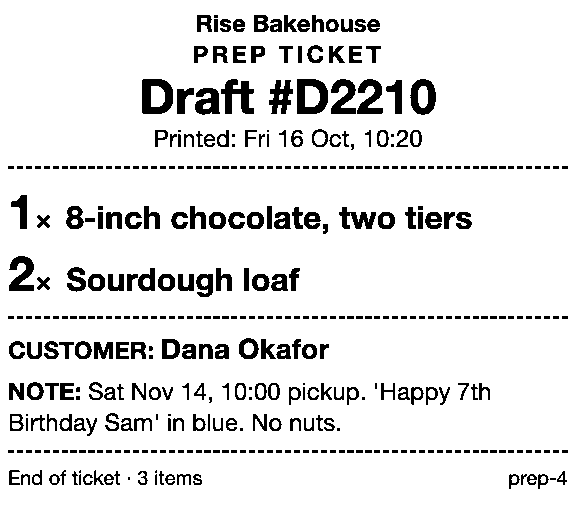
For the whole bakery workflow, see printing bakery order tickets.
Next step
Prep Ticket isn’t on the Shopify App Store yet. Join early access to Countermade, the Shopify POS apps from Invenire Studios, and we’ll email you when it’s ready to try.
Get early access to Prep Ticket
Thanks. You’re on the list, and we’ll email you when Prep Ticket is ready to try.
Common questions
Where is “Show order note” in Shopify POS now?
Can I print the order note before the customer pays?
Do I need POS Pro to print order notes on receipts?
Why did my order notes get replaced with the order number?
Can I add the order note to a Shopify packing slip?
Read next
About Prep Ticket- Guide How to print a Shopify draft order from POS Shopify has no Print button for drafts. Every workaround, and what each one prints.
- Guide Shopify POS: how to print an order before the customer pays Create the order now with Mark unpaid, or keep it as a draft and print that instead.
- Guide Which printers can print prep tickets from Shopify POS? Which Star and Epson printers Shopify supports, and how POS apps print to them.
- Guide Recent cart or draft order: which to use in Shopify POS Recent carts delete after 24 hours by default. Drafts last a year unedited and can hold stock.
- Guide Shopify POS receipt code editor ends January 1, 2027: what to do The code editor ends January 1, 2027. What to check, rebuild and preview before you switch.
- Guide How to create a pickup order in Shopify POS Create a Shopify POS pickup order, mark it ready, notify the customer, and print a slip