
Shopify POS: how to print an order before the customer pays
Updated · 5 min read
By Invenire Studios, makers of Countermade
The short answer
Shopify POS has no print option for a cart or a draft, and a saved cart is now a draft. The default route: tap Mark unpaid at checkout, which makes a real order with a 0.00 payment to collect later, then print its receipt or order page. To keep it a draft, print the draft’s admin page from your browser, or use an app that prints drafts.
Why you’d want it on paper before payment
The order is agreed but unpaid. For example, a bakery takes a cake order by phone and the baker needs a ticket today, though the customer pays at pickup. Or a café customer asks to see the bill first. Merchants in Shopify’s community have asked to print drafts for similar reasons, “for approval, or for picking purposes”. Separate pages cover bakery order tickets, florist workroom tickets and made-to-order job tickets.
What the paper is for decides what to print. A bill for the customer needs prices; a ticket for the person making the order is better without them. POS’s Printed receipts settings won’t help: they cover receipts printed after each transaction.
Saved carts are draft orders now
Shopify’s help page on POS drafts says that if a customer needs to leave before completing their purchase, “you can save their cart as a draft order on Shopify POS to complete the sale later.” Drafts in POS are “available only for locations that are currently on the Shopify POS Pro subscription”, and POS lists drafts made in POS or the Shopify admin. Carts saved by some third-party apps aren’t drafts at all, so the draft routes don’t apply to them: as of October 2026, Leav’s Cart Manager for POS says it saves carts “without draft orders”.
To save a cart as a draft and pick it up again:
- Build the cart and add the customer. For anything the maker needs to know, tap the ⋯ (More actions) icon at the top of the cart, then Add note. Type the note and tap Save.
- Tap the ⋯ icon again, then Create draft order.
- To reopen it, tap the Order icon, then Drafts. Choose the draft and tap Load to cart. To see drafts made in the Shopify admin, filter the list to Admin (Shopify’s help calls this the Sale type filter).
- After any change, tap the ⋯ icon, then Update draft order.
As of October 2026, neither the cart’s ⋯ menu nor the draft order screen has a print option. The draft screen offers Load to cart, Email to customer and Delete draft order, plus any actions your apps add. Shopify’s admin printing help agrees: “Draft orders can’t be printed.”
Print an unpaid order with Mark unpaid
This route needs only Shopify’s own tools. The POS receipt needs one of the receipt printers Shopify POS supports; the admin order page and Shopify’s Order Printer app (free as of October 2026) print through your browser’s or iPad’s print dialog.
- Build the cart with the customer and any note, or load a saved draft, and tap Checkout.
- On the payment screen, tap Mark unpaid. In Shopify’s words, “The order is processed as a 0.00 payment and can be paid for later.”
- To print a receipt, tap the Order icon, open the order, tap Receipt, select the event, then choose the receipt option. Shopify’s steps for reprinting a receipt work “for any order”. Without a receipt printer, open the order in the Shopify admin under Orders and click Print > Print order page.
- When the customer comes back to pay, tap the Order icon, open the order and tap Collect payment. Enter the amount, choose card, cash or another method, complete the payment and tap Done. These are Shopify’s steps for part-paid orders; its help gives none just for orders marked unpaid, so try them on a test order first. Don’t edit the order before it’s paid: Shopify says an edited order can’t receive more payments.
- If the customer paid outside Shopify, such as by bank transfer, record it in the admin instead: open the order (it shows as Payment pending), click Collect payment, then Mark as paid (Shopify’s deferred payments help).
Before you rely on it:
- The order exists now. If the customer never returns, you have an unpaid order to deal with. A community reply suggesting this workaround said it suits you “if you are like 99% sure they will pay”, and called adding items afterwards through an exchange “a bit clunky”.
- It isn’t available everywhere. Shopify says some retail locations in the EU, “such as France, Italy, and Spain”, can’t mark a transaction as unpaid at checkout.
- A receipt shows prices. That suits a bill. For the workroom, print its packing slip from Order Printer’s tile on the POS smart grid (add the tile once). The default slip lists items and quantities without prices, but leaves out the order note until you add it to the template (bakery order tickets shows how).
Keep it as a draft and print it
A draft creates no order until you check it out. Shopify has no Print button for drafts, so print the page itself:
- In the Shopify admin, go to Orders > Drafts and open the draft.
- Use your browser’s Print command (Ctrl+P on Windows, Cmd+P on a Mac).
- Choose your printer and print. You get the admin screen as your browser lays it out, prices included. It doesn’t work from the POS app.
For a quote or invoice, use an order-printer app that prints drafts (Prep Ticket vs order printer apps compares them). For a price-free ticket from the POS draft screen, see Prep Ticket below. Every way to print a Shopify draft order from POS covers each route.
Where Prep Ticket fits
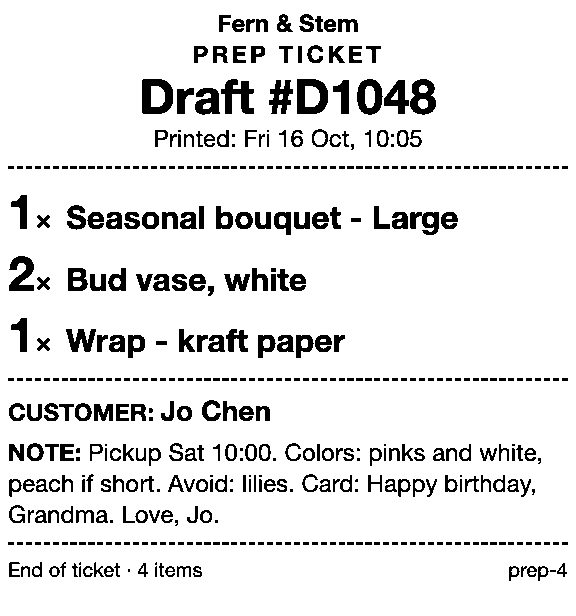
Prep Ticket, from Countermade (the Shopify POS apps from Invenire Studios), prints the ticket without creating the order. It’s built for the order that’s agreed but not yet paid: the cake for Saturday, the bouquet for pickup, the job waiting on a proof. From a draft order in Shopify POS, it produces a ticket for whoever is making the order: item names, quantities, customer and notes, with no prices. It only reads the draft, so it takes no payment and the order stays a draft until you check it out.
It sends the ticket through the iPad’s print dialog to a printer the iPad can reach over AirPrint, and works with drafts made in POS or the Shopify admin, on Shopify POS Pro.
Next step
If the customer needs a bill, try Mark unpaid on a test order first and print its receipt or order page. If whoever makes the order needs a ticket without prices while the order stays a draft, see how Prep Ticket prints one from the draft screen.
Sign up for early access and we’ll email you when Prep Ticket is ready to try.
Get early access to Prep Ticket
Thanks. You’re on the list, and we’ll email you when Prep Ticket is ready to try.
Common questions
Can Shopify POS print a bill or receipt before the customer pays?
Where did saved carts go in Shopify POS?
Does Mark unpaid create a real order?
Does Mark unpaid work in every country?
Read next
About Prep Ticket- Guide How to print a Shopify draft order from POS Shopify has no Print button for drafts. Every workaround, and what each one prints.
- Guide Which printers can print prep tickets from Shopify POS? Which 80mm Star and Epson printers Shopify supports, and how POS apps print to them.
- Comparison Prep Ticket vs POS Cafe vs Simmer Two café systems and a ticket printer for draft orders, with prices as of October 2026.
- Comparison Which order printer apps print Shopify draft orders? Order Printer Pro, Printly and MS Order Printer compared, and when a ticket fits better.
- By trade How to print bakery order tickets in Shopify POS Get cake orders to the baker without prices, whether paid, part-paid or paid at pickup.
- By trade How to print a florist order ticket in Shopify POS Get the arrangement, card message and pickup time to the workroom without the price.