
How to print a florist order ticket in Shopify POS
Updated · 4 min read
By Invenire Studios, makers of Countermade
The short answer
Once a florist order is paid, or checked out with Mark unpaid, Shopify’s free Order Printer app prints a price-free packing slip for the workroom, after one template edit to add the note. Shopify won’t print a draft. Prep Ticket, from Countermade, prints a clean, price-free workroom ticket straight from a POS draft.
What goes on a florist order ticket, and where to type it
Whoever builds the arrangement (a designer in the back, or you three hours later) needs:
- the arrangement, its size and how many;
- colors, and what to substitute if a stem runs short;
- what to leave out (“no lilies”);
- the card message, word for word;
- the pickup or delivery time, and for a delivery, who it’s for and where.
Not the price. Put the arrangement in the cart and everything else in the order note:
- Add the arrangement: a catalog product, or for a one-off design, tap Add custom sale, enter a title (for example, “Hand-tied bouquet, large, pastels”) and the price, then tap Add to cart.
- From the cart, tap the ⋯ icon, tap Add note, type the details and tap Save.
- If the customer pays now, take payment as usual. If they’ll pay later, check out with Mark unpaid for an order you can print now, or tap the ⋯ icon and tap Create draft order (POS Pro) to keep a draft.
Write every note in the same order so tickets read alike. For example: “Pickup Sat 10:00. Colors: pinks and white, peach if short. Avoid: lilies. Card: Happy birthday, Grandma. Love, Jo.” For a delivery, lead with the time, recipient and address.
Once it’s an order: print from Shopify POS
Shopify Order Printer is Shopify’s own app (free as of October 2026):
- Install Order Printer and add its tile to your smart grid.
- Tap the tile, select the order and choose the packing slip under Documents.
- Tap Print documents, choose your printing preferences and tap Print.
On an iPad, Order Printer prints through the print dialog. The default packing slip has no prices and no order note, so add the note to the template (bakery order tickets shows how), then test-print one. With a receipt printer, POS also prints the order’s receipt, totals included.
Gift receipt. Tap Gift receipt on the Payment successful screen, or later open the order from Orders and tap Print gift receipt. Shopify says it “doesn’t contain the amount spent”. It needs a receipt printer, and Shopify doesn’t say whether the note prints, so print a test first.
If the order is a draft: Shopify POS has no print option
With POS Pro (a paid add-on for each location on most plans), you can save the cart as a draft order and finish the sale later. POS lets you complete, update, delete or email a saved draft, but not print it. Shopify’s help says: “Draft orders can’t be printed.”
Without an app, you have two routes:
- Print the draft page from your browser. In the Shopify admin, open the draft from Orders > Drafts and use your browser’s Print command. Prices print too.
- Check out with Mark unpaid. Load the draft to the cart, check out and tap Mark unpaid (some EU locations can’t). Shopify processes the sale “as a 0.00 payment” to be paid later, so the draft becomes a real order that Order Printer can print. If the customer never comes back, the order stays unpaid (printing before payment covers the trade-off).
An app can print the draft itself. Order Printer Pro lists “Print and export draft orders” on its Shopify App Store page (as of October 2026); check that it prints from POS and leaves prices off. How to print a Shopify draft order from POS covers each workaround, and Prep Ticket vs order printer apps compares the apps.
Print a draft’s workroom ticket with Prep Ticket
Prep Ticket is for florists who take phone and counter orders as drafts and hand them to the workroom before the customer pays. Staff open the draft from Drafts in Shopify POS, choose Prep Ticket and print the price-free ticket.
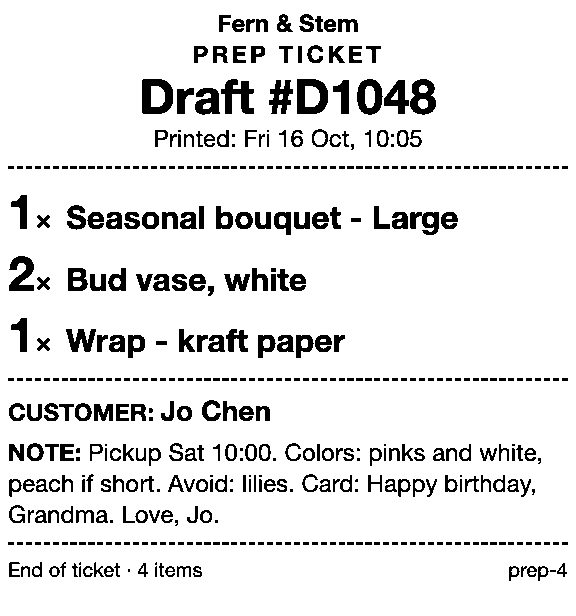
- It prints through the iPad’s print dialog to an AirPrint printer.
- The note is the brief. The ticket shows the arrangement, quantities, the customer and the note, so put the card text and the recipient’s delivery details in the note.
- It works with drafts made in POS or the Shopify admin.
For taking payment on florist phone orders, see Shopify POS phone orders for florists.
Get early access to Prep Ticket
Prep Ticket is made by Countermade, the Shopify POS apps from Invenire Studios. It works on Shopify POS Pro. See how Prep Ticket works, or join early access and we’ll email you when it’s ready to try.
Thanks. You’re on the list, and we’ll email you when Prep Ticket is ready to try.
Common questions
Can Shopify POS print a work ticket for an unpaid flower order?
How do I print an order ticket without prices in Shopify POS?
Where should I put the card message so the workroom sees it?
Can the ticket show who the flowers are for?
Read next
About Prep Ticket- By trade · Pay Link How to take florist phone orders in Shopify POS and get paid Get paid for a phone order without hearing a card number, and charge local delivery on it.
- By trade How to print bakery order tickets in Shopify POS Get cake orders to the baker without prices, whether paid, part-paid or paid at pickup.
- By trade How to print a job ticket for a custom order in Shopify POS Engraving, embroidery or framing: where the spec goes and how to print it for the bench.
- Guide How to print a Shopify draft order from POS Shopify has no Print button for drafts. Every workaround, and what each one prints.
- Guide Shopify POS: how to print an order before the customer pays Create the order now with Mark unpaid, or keep it as a draft and print that instead.
- Guide Which printers can print prep tickets from Shopify POS? Which 80mm Star and Epson printers Shopify supports, and how POS apps print to them.