
Shopify POS receipt printer not printing? Fixes by symptom
Updated · 6 min read
By Invenire Studios, makers of Countermade
The short answer
If your Shopify POS receipt printer is not working, update the device and Shopify POS, restart the device and the printer, and check the printer is the Default receipt printer. Then find your symptom below: not listed, won’t pair, keeps disconnecting, slow, or stopped after an update. To keep selling meanwhile, see the backup options.
What should I check first when my Shopify POS receipt printer stops printing?
Work through these checks in order: update the device’s operating system and then Shopify POS, restart the device and power-cycle the printer, then confirm in Connectivity that the printer is listed and set as Default receipt printer. Shopify POS sends receipts to the default printer, and a yellow Connectivity icon means hardware is disconnected. Finish with a test print.
- Update the operating system, then tap the Connectivity icon > This device, and in the App version row tap Download latest update.
- Restart the device. Turn the printer off, unplug it, plug it back in and turn it on.
- Tap the Connectivity icon. Under Hardware, tap your printer, turn on Default receipt printer, then tap Test receipt printer.
- Press FEED on the printer to check the paper is loaded.
If the test prints but sales receipts don’t, check automatic printing. If receipts look different, see the receipt code editor change.
Why is my receipt printer not showing in Shopify POS Connectivity?
Usually it’s one of three things: the device can’t reach the printer, Shopify POS doesn’t support the model, or iOS permissions are off. A network printer must be on the same network as your POS device, and guest networks, VLANs and network segmentation can stop Shopify POS finding it.
- Model: check Shopify’s supported receipt printers or the guide to which printers work with Shopify POS.
- Wi-Fi: see the Wi-Fi question in the FAQ below.
- Permissions (iOS): depending on the printer, Shopify’s list includes Local Network, Background app refresh, Allow Cross-Website Tracking, Location “When using this app” and Bluetooth.
To re-add it: Connectivity icon > + Add hardware > Receipt Printer > brand > connection > your printer.
“No Host Connection” and other network printouts
On a Star TSP143IIILAN, hold FEED while switching it on to print a self-test: zeroes under “Current IP Parameters Status”, or “No Host Connection”, point to the router or cable. An Epson TM-m30III prints a network status sheet with “PASS” or “FAIL” in the “Check Network Connection” field.
What does “Unable to pair printer. Please try again.” mean on an Epson TM-m30III?
In a Shopify Community thread, Shopify’s support team linked this message to Epson’s RED security. Shopify’s TM-m30III page says RED-activated printers need Secure Printing turned off to pair, and it’s on by default for printers in RED scope. Turn it off in Epson’s TM Utility, Web Config or EpsonNet Config, then pair again.
If it still won’t pair, restart the printer, forget it in your Bluetooth list and add it again in Shopify POS; the merchant who reported the error confirmed this on Android. The TM-m30II and TM-m30III pair with only one device at a time, so unpair the printer from any other device first.
Why does my Bluetooth receipt printer keep disconnecting from Shopify POS?
For Star Bluetooth printers, Shopify’s fix is to reconnect from the device’s Bluetooth settings and turn on Auto-connection. For an Epson TM-m30II or TM-m30III on an iPad, forget the printer, switch the iPad off for 2–3 minutes, then turn Bluetooth back on and reconnect.
Star Micronics: in Settings > Bluetooth, tap the printer while it shows “Not connected”, then restart it once it shows “Connected”. If it still drops, disconnect other Bluetooth devices. On Android, also allow Nearby devices for Shopify POS.
Epson TM-m30II and TM-m30III: on an iPad, tap the i next to the printer in Bluetooth settings, then Forget This Device. With a TM-m30III on Android, turn Bluetooth off, switch the tablet off for 2–3 minutes, then turn Bluetooth on and reconnect.
Why are Shopify POS receipts slow to print, or stuck on “Printing Receipt…”?
Merchants have reported receipts taking 5–10 seconds with automatic printing on, or a button stuck on “Printing Receipt…”. Forget the printer in the device’s Bluetooth settings and pair it again, then reprint a completed order’s receipt (Order icon > the order > Receipt). If the reprint is quick but new sales are slow, tell Shopify Support what you found.
A reply in a merchant thread on slow Bluetooth printing suggests this test: if the reprint is quick, the delay isn’t in the printer connection.
Why did automatic receipt printing stop working in Shopify POS?
Automatic printing works only at locations on Shopify POS Pro, and prints through the connected default printer. Staff on Limited permissions may not see receipt settings, and a change made in the POS app applies only to that device’s location, so check the setting at each location.
- In Shopify POS, tap the horizontal menu icon > Settings. Under Orders, open Printed receipts and turn on Automatically print receipts.
- Or in the admin: Sales channels > Point of Sale > edit Receipts, turn on “Automatically print receipts through the connected default printer”, and choose this location or all.
Why did my receipt printer stop working after a Shopify POS update?
Update the device’s operating system and Shopify POS again, restart both, then add the printer again via Connectivity icon > + Add hardware > Receipt Printer. If the iPad still sees a Bluetooth printer but Shopify POS doesn’t, forget it in the device’s Bluetooth settings first. If it’s still missing, contact Shopify Support.
A merchant reported a Bluetooth printer that the iPad still picked up but that disappeared from Shopify POS after an update. In another thread, a merchant reported that a later Shopify POS update restored printing.
How do I connect a USB receipt printer to Shopify POS?
On an iPad, connect a USB printer through the Shopify POS Hub; Shopify recommends the Hub for the most reliable USB connection. On a compatible Android tablet, Shopify supports three receipt printers over USB: the Epson TM-m30III, Star Micronics mC-Print3 and Star Micronics TSP143IV-UEWB.
If a Hub printer won’t print, unplug the Hub’s power for 10 seconds, then try a different cable and USB port; if the Hub still shows Error, restart the iPad. The Hub needs iPadOS 18 or higher, and on a Lightning iPad use the Hub’s Lightning cable, not an adapter.
Why is my receipt printer out of paper, on the wrong paper width or showing a red error light?
On an Epson TM-m30III, a blinking red ERROR light means there’s no paper: open the printer, replace the paper and close the lid. On a Star TSP143IIILAN, check the paper is installed correctly and the status light is solid blue. Shopify’s printer pages call 80mm the required paper size (the older Star mPOP takes 57mm).
For the width, set a TM-m30II to 80mm - 48 columns in Epson’s utility, and on a TM-m30III remove the 58mm guide rails.
How do I keep selling while the receipt printer is down?
If you have a second printer, Shopify POS can prompt you to use it as a backup for that receipt; otherwise keep selling and reprint from the order later. To reprint, tap the Order icon > the order > Receipt, choose the event, then the receipt option; it prints or sends to the customer.
Where Prep Ticket fits
If you’ve been printing a receipt just to hand the order to whoever makes it, a prep ticket does that job without the prices. If you’re weighing a back-room screen instead, see kitchen display vs printed tickets.
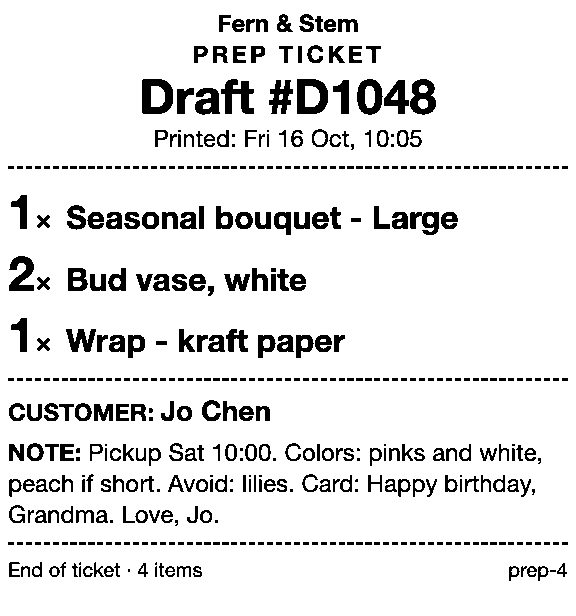
Prep Ticket, from Countermade (the Shopify POS apps from Invenire Studios), turns a draft order saved in Shopify POS into a prep ticket with the item names, quantities, customer and notes, and no prices. It prints through the iPad’s print dialog to an AirPrint printer the iPad can reach. Prep Ticket needs Shopify POS Pro.
 Page 1 of 1OptionsPrinterNo Printer Selected ›Copies1
Next step
Start with the Connectivity icon, then work down to your symptom.
Prep Ticket isn’t on the Shopify App Store yet. Get early access and we’ll email you when it’s ready to try.
Get early access to Prep Ticket
Thanks. You’re on the list, and we’ll email you when Prep Ticket is ready to try.
Common questions
Why does my test receipt print but not my sales receipts?
Can two iPads print to the same receipt printer?
Why won’t my Wi-Fi receipt printer connect to Shopify POS?
My receipt prints but the order note is missing. Is it the printer?
Who do I contact if my receipt printer still won’t print?
Read next
About Prep Ticket- Guide How to print a Shopify draft order from POS Shopify has no Print button for drafts. Every workaround, and what each one prints.
- Guide Shopify POS: how to print an order before the customer pays Create the order now with Mark unpaid, or keep it as a draft and print that instead.
- Guide Which printers can print prep tickets from Shopify POS? Which Star and Epson printers Shopify supports, and how POS apps print to them.
- Guide Recent cart or draft order: which to use in Shopify POS Recent carts delete after 24 hours by default. Drafts last a year unedited and can hold stock.
- Guide Shopify POS receipt code editor ends January 1, 2027: what to do The code editor ends January 1, 2027. What to check, rebuild and preview before you switch.
- Guide How to create a pickup order in Shopify POS Create a Shopify POS pickup order, mark it ready, notify the customer, and print a slip