
How to print a gift message from a Shopify POS order
Updated · 6 min read
By Invenire Studios, makers of Countermade
The short answer
Type the card message as the order note in the Shopify POS cart. For a paid order, print it alone, with no prices, on a one-field Shopify Order Printer template, printed from its POS tile. The sales receipt prints it too (with prices) once Order note is on; gift receipts don’t. For an unpaid draft, Prep Ticket, from Countermade, prints the message and items for whoever wraps the gift, with no prices.
| Printout | Carries the note? | Shows prices? | Prints from |
|---|---|---|---|
| Sales receipt (Order note on) | Yes | Yes | Any order (reprint) |
| Gift receipt | No | No | A completed order (Print gift receipt) |
| Order Printer template of your own | Yes, with order.note |
Only if your template prints them | An order |
| Prep ticket (Prep Ticket) | Yes, with the items, for whoever makes up the gift | No | An unpaid draft order |
Where do I type a gift message in Shopify POS?
Type the gift message as the order note. You can add one to any cart in Shopify POS, and the note shows on the order’s details screen. To get the message onto paper, print it on an Order Printer template, the sales receipt, a packing slip (for gifts you ship) or, for an unpaid draft order, a prep ticket.
To add the note from the cart (steps from Shopify’s order notes help page):
- In the Cart, tap the horizontal menu icon.
- Tap Add note.
- Enter the message, then tap Save.
Write the note exactly as the card should read, sender included. For example:
Happy 40th, Sam. Lots of love,
Jo and the kids
For a note on one item rather than the whole order, see how to add notes to individual items.
If the gift is phoned in and not paid yet, save it as a draft order with the note and print it from the draft.
Will the gift message print on the Shopify POS receipt?
Yes, on the sales receipt, if the Order note setting is turned on in Shopify’s receipt editor. But the sales receipt is the buyer’s copy: it carries the line items and order totals for the sale, so it suits the customer at the counter, not the box the gift goes in.
To turn on Order note and test-print it, follow why Shopify POS order notes don’t print.
Can I put the card message on a gift receipt instead?
No. Shopify’s Order note setting applies to sales and return receipts, not gift receipts. Gift receipts leave out prices and totals, and since August 11, 2026 they no longer list the items either. They show a barcode linking to the original order, plus the header and footer content set in the receipt editor (logo, return policy, custom text).
A gift receipt is still worth putting in the box. Print it from the order’s Print gift receipt option, which shows only if you have a receipt printer. Print the card message separately on a card-message template. For what changed in August 2026, see what a gift receipt shows now.
How do I print just the card message, without prices?
Make a one-field template in Shopify Order Printer and print it from POS. Order Printer is Shopify’s own app, free as of October 2026. Its templates can read the order note, and a template that prints only the note gives you a clean card for the gift, with no items, prices or totals on the page.
Create the template in the Shopify admin:
- Go to Apps > Order Printer, then click Templates.
- Click Create a template and give it a name, such as “Card message”.
- Paste the example code below into the code editor (it takes HTML, CSS or Liquid).
- Click Preview, then check the template on an order that has a note before you rely on it.
- Click Save.
Example template (prints the note and nothing else):
{% if order.note %}
  <div style="font-family: Georgia, serif; font-size: 20px; padding: 40px; white-space: pre-line;">
    {{ order.note }}
  </div>
{% endif %}
It prints every line of the note, which is why the note should hold only the card text.
To print it at the counter:
- On the POS Home screen, tap Order Printer in the smart grid. If the tile isn’t there, add it.
- Select the order.
- In the Documents section, select only your Card message template.
- Tap Print documents.
- Choose your paper size and layout, then tap Print.
How do I print the gift message on a Shopify packing slip?
Add {{ order.note }} to your packing slip template. In the Shopify admin, go to Settings > Shipping and delivery, then in the Documents section click Packing slip template (or your packing slip’s name). Put the variable where the message should print, click Preview template, then click Save. This suits gifts you ship.
If you have more than one packing slip template, edit the default one, since that’s the one Print packing slips uses. Before you rely on it, preview an order that has a note and check that the message shows and the prices don’t.
Gift messages collected at online checkout by a gift app aren’t always in the note. Giftship’s docs, for example, describe them as line item properties or order attributes, so a template that prints {{ order.note }} leaves them out. Use the field the app’s own help names.
How do I print the gift message and items from an unpaid draft order?
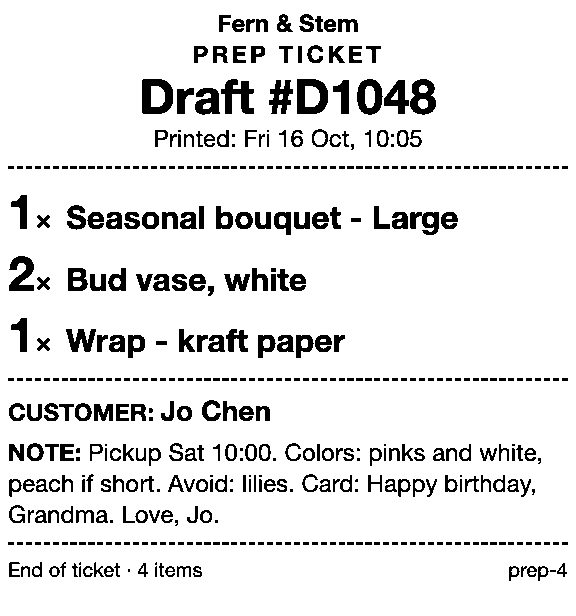
Order Printer’s steps start from orders, so an unpaid draft order needs its own printout. Save the cart as a draft with the message in the note, then print a prep ticket with Prep Ticket, from Countermade. It lists item names, quantities, the customer and the notes, with no prices: a sheet for whoever makes up the gift, not a card for the box.
To save the draft, tap the menu icon in the cart, then Create draft order. Draft orders in POS need a location on Shopify POS Pro. Drafts made in the Shopify admin can take a note too, and POS can load them.
There’s more on saving a POS cart as a draft order and on taking hamper orders by phone.
How do I get the card message to the workroom before the customer pays?
Print a prep ticket as soon as the draft is saved. The card text travels in the order note staff already type, so there’s no new field to learn, and the workroom reads it word for word before the customer pays. That suits shops that take gift orders at the counter or by phone and make them up later. Florists can see the workroom ticket for florist orders.
Prep Ticket prints through the iPad’s print dialog to a printer the iPad can reach (AirPrint) and needs Shopify POS Pro. With no printer, staff are told so and offered the print dialog instead.
Read what a prep ticket is, see how Prep Ticket compares with order printer apps, or find every way to get a draft on paper in how to print a Shopify draft order from POS.
Next step
Prep Ticket isn’t on the Shopify App Store yet. Join early access and we’ll email you when it’s ready to try.
Get early access to Prep Ticket
Thanks. You’re on the list, and we’ll email you when Prep Ticket is ready to try.
Common questions
Can I edit the gift message after I’ve saved it?
Why does my iPad print a different receipt from the preview?
Can I add the card message after the sale?
Can Shopify Order Printer print a gift message?
How do I keep the price off the paper that goes with the gift?
Read next
About Prep Ticket- Guide How to print a Shopify draft order from POS Shopify has no Print button for drafts. Every workaround, and what each one prints.
- Guide Shopify POS: how to print an order before the customer pays Create the order now with Mark unpaid, or keep it as a draft and print that instead.
- Guide Which printers can print prep tickets from Shopify POS? Which Star and Epson printers Shopify supports, and how POS apps print to them.
- Guide Recent cart or draft order: which to use in Shopify POS Recent carts delete after 24 hours by default. Drafts last a year unedited and can hold stock.
- Guide Shopify POS receipt code editor ends January 1, 2027: what to do The code editor ends January 1, 2027. What to check, rebuild and preview before you switch.
- Guide How to create a pickup order in Shopify POS Create a Shopify POS pickup order, mark it ready, notify the customer, and print a slip