
Switching from Clover to Shopify POS at the counter
Updated · 7 min read
By Invenire Studios, makers of Countermade
The short answer
Your Clover items and customers move by CSV export, order history needs a third-party app, and each counter needs a reader from Shopify’s supported list. Virtual Terminal becomes Collect payment on an admin draft, or POS Manual card entry. Invoices become a draft’s emailed or copied link, or Send cart. Open orders become recent carts or POS drafts, both POS Pro features. Kitchen tickets print with Order Printer once a sale is an order.
Which Clover counter habits need a new home in Shopify POS?
Five daily counter routines change after Clover: keying in a caller’s card, sending an invoice, keeping an open order, printing a ticket for the kitchen or workroom, and sending a receipt. Four have a full native Shopify route; printing a ticket for an order that’s still a draft is where an app helps. The table links the steps.
| The Clover habit | In Shopify | Needs POS Pro? | Where an app helps |
|---|---|---|---|
| Key in a caller’s card in Virtual Terminal | Collect payment > Credit card on an admin draft (Shopify Payments), or Manual card entry at POS checkout (steps) | Not a listed Pro feature | Pay Link, from Countermade (the customer types their own card) |
| Send a customer an invoice or link to pay | A draft’s invoice email or Share > Copy link; POS Send cart; a Quick Sale Payment link (steps) | Send cart and POS drafts: yes | Pay Link: a link built from the POS cart, paid on Shopify’s checkout |
| Keep an open order for later | Recent carts, or Create draft order for longer waits (steps) | Yes | – |
| Print a ticket for the kitchen or workroom | Order Printer once it’s an order; no print option in Shopify’s POS draft help (steps) | Drafts: yes | Prep Ticket, from Countermade |
| Send a digital receipt | Payment successful > Text or Email receipt | Not a listed Pro feature | – |
What replaces Clover Virtual Terminal in Shopify?
Shopify has no feature called Virtual Terminal, but two steps do its job. In the Shopify admin, open a draft order and use Collect payment > Credit card, which needs Shopify Payments. In Shopify POS, tap Manual card entry at checkout. Manual card entry counts as a card-not-present payment, even with the customer at your counter.
- Shopify admin: complete Shopify Payments’ verification first. Then go to Orders > Drafts, open the draft, click Collect payment > Credit card, enter the card and click Charge.
- Shopify POS: tap Checkout > Manual card entry, enter the card and tap Charge.
Clover’s Virtual Terminal runs from your dashboard with no device. Manual entry carries extra fraud risk and, with Shopify Payments, is charged at a different rate from in-person card payments. For the full answer, see does Shopify have a virtual terminal.
How do I send a customer an invoice to pay, like Clover invoices?
Open the draft order in the Shopify admin and send its invoice, which emails the customer a link to checkout, or click Share > Copy link and paste the link into your own text. At the counter, POS Send cart emails a checkout link; away from it, make a Quick Sale payment link in the Shopify app (not POS).
As of October 2026, Clover invoices go out from Sales activity > Invoices by email, text or a shareable link. Shopify’s draft invoice is an email, so to text a request, copy the link yourself:
- Save the order as a draft (in POS, see open orders below).
- In the Shopify admin, open the draft and click Share, then Copy link.
- Paste the link into a text to your customer.
Product prices on the link are locked by default. Full steps: send a Shopify payment link by text.
From the POS counter. Tap ⋯ (More actions) > Send cart, enter the customer’s email and tap Send. It needs POS Pro and takes payment for the whole order only.
Away from the counter. In the Shopify app, start a Quick Sale and tap Collect > Payment link > Share link.
Clover could send reminders for overdue invoices; to chase an unpaid link in Shopify, see chase an unpaid payment link and know when a link is paid. If you need formal invoices, compare a payment link with an invoice app.
Checkout asks for a delivery address and may add shipping, so for customers who collect, turn on pickup: Settings > Shipping and delivery > Pickup in store > your location > Let customers pick up orders directly at this location > Save. See why a payment link added shipping.
What replaces Clover open orders in Shopify POS?
Use a recent cart for a customer who’ll be back within the day and a draft order for anything that waits longer. Recent carts delete after 24 hours by default and staff on other devices in the same store can pick them up, but they don’t hold stock. Only a draft holds stock, and only once you reserve it in the admin or the Shopify app. Both need POS Pro.
To park an order as a draft and bring it back:
- In the cart, tap ⋯, then Create draft order.
- When the customer is ready, tap ⋯ > Load draft order and choose the draft.
- Tap Load to cart and take payment as usual.
For the trade-offs, see recent carts vs draft orders and Shopify POS draft orders.
How do I print kitchen or prep tickets in Shopify POS after Clover?
Once a sale is an order, Shopify’s Order Printer prints it from the POS smart grid. An order still waiting as a draft is harder: Shopify’s POS draft-order help shows no print option, so a prep copy for the kitchen or workroom takes a workaround or an app such as Prep Ticket.
To print an order with Order Printer:
- Add the Order Printer tile to your smart grid, then tap it.
- Select the orders and choose the documents you want.
- Tap Print documents.
Native workarounds for drafts are in how to print a Shopify draft order from POS. Skip the gift receipt as a stand-in: since August 11, 2026, gift receipts on Shopify’s new receipt template no longer list items. See also kitchen display vs printed ticket and auto-print apps compared.
Can I keep my Clover hardware and data when I switch to Shopify POS?
Your items and customers move; your Clover card readers aren’t on Shopify’s supported list. Shopify’s Clover guide says “some of your hardware might be compatible,” but Shopify also says that to start, “you need a smartphone or tablet and a Shopify card reader.” Order history needs a third-party migration app, and reviews can’t move.
Switch in this order:
- Export items and customers from Clover as CSV files and import them, or import products with Shopify’s Store Migration app (early access, for some stores).
- Move order history with a third-party migration app from the Shopify App Store, if you want it.
- Order a reader from Shopify’s supported list for each counter, and check which receipt printers work with Shopify POS.
- Add POS Pro to the locations that park sales or send carts.
- Turn on pickup in store (steps above).
Shopify allows three product options and doesn’t support prices by location, so check items that relied on either. The full checklist is Shopify’s Migrate from Clover guide.
Moving from Square instead? See switching from Square to Shopify POS.
Which Clover replacements need Shopify POS Pro?
Recent carts, draft orders saved in Shopify POS and Send cart need POS Pro. Admin drafts with Collect payment, Quick Sale payment links and texted or emailed receipts aren’t among the Pro features Shopify lists; Pickup in store is. POS Pro is a monthly add-on for each POS location, available on any Shopify plan.
If only some counters need these, see Shopify POS Lite vs Pro for counter orders.
Which apps help after switching from Clover to Shopify POS?
After Clover, two counter jobs go better with an app: taking a phone order without keying in the card, and printing a prep copy of an order that’s still a draft. Countermade, the Shopify POS apps from Invenire Studios, makes Pay Link for the first and Prep Ticket for the second. Both need Shopify POS Pro.
For phone orders and invoices, Pay Link builds the payment link from the POS cart, and staff see the total up front, with a note when checkout will add shipping. Instead of staff keying a card into Virtual Terminal, the customer pays on Shopify’s own secure checkout, so staff never see or type card details.
Staff can see whether the link has been paid, and a double tap makes one link, not two. Pay Link takes full payment; for deposits, see deposits by plan. For other ways to send a link, see Shopify POS payment link options.
Turn on local pickup so customers can choose it at checkout (steps above).
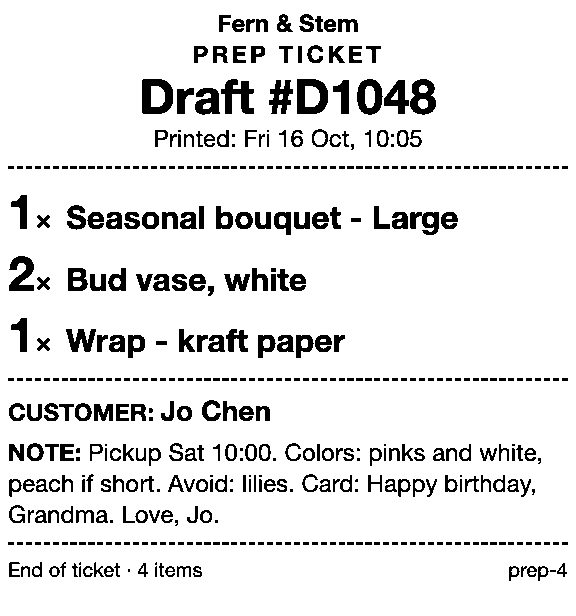
For kitchen and workroom tickets, Prep Ticket prints from a draft order in Shopify POS: item names, quantities, customer and notes, and no prices. It prints through the iPad’s print dialog to a printer the iPad can reach (AirPrint). With no printer, staff are told so and offered the print dialog instead.
Set up your counter before the switch
Once the steps above are done, take the table to your next staff meeting and have each person save one draft and load it back.
Pay Link and Prep Ticket aren’t on the Shopify App Store yet. Get early access and we’ll email you when they’re ready to try.
Pick one app or both
Thanks. You’re on the list, and we’ll email you when each app is ready to try.
Common questions
Can I use my Clover card reader with Shopify POS?
Will my Clover order history move to Shopify?
Can Shopify text an invoice like Clover?
Does Shopify POS print kitchen tickets like Clover?
Can Shopify POS text a receipt to a customer?
Read next
About Pay Link- Guide How to take phone orders on Shopify without asking for card details Send the caller a checkout link by email or text, set pickup, then check it’s paid.
- Guide How to send a Shopify draft order payment link by text message Shopify only emails invoices. Copy the checkout link and text it from your own phone.
- Guide Shopify payment links explained: draft orders, Quick Sale and POS Every way Shopify bills by link, what each creates and where the paid order lands.
- Guide Taking a card by phone in Shopify: key it in or send a link Key a caller’s card or send a checkout link: when each fits, and how to turn keying off.
- Guide How to create a local delivery order in Shopify POS Local delivery at the POS checkout: the taps, the rules, and how to deliver phone orders.
- Guide How to take pre-orders at the counter in Shopify POS Shopify pre-orders are online only. Here’s the POS routine for dated counter and phone orders.