
How to get a proof approved before the customer pays on Shopify
Updated · 7 min read
By Invenire Studios, makers of Countermade
The short answer
Shopify’s draft orders have no proof approval step, so the draft itself holds the job unpaid. Save the job as a draft (in Shopify POS: ⋯ > Create draft order), send the proof yourself, then record the approval on the draft: a line in the note and the approved file in its Timeline. Only then send the checkout link, and print the job ticket for the bench. Nothing is charged until the customer pays that link.
Does Shopify have a proof approval step?
No. Draft orders have no proof or artwork approval button, so the draft carries the job: the items, the price and the customer, with no payment taken. When the customer pays its checkout link, the draft becomes an order on the Orders page and is marked as Paid automatically.
The whole route, start to finish:
- Save the job as a draft order.
- Send the proof as its own message.
- Record the approval on the draft.
- Send the checkout link.
- Print the job ticket for the bench.
How do I save the job as a draft before the proof goes out?
At the counter, build the cart, add the customer and the job spec as a note, then save it as a draft order. Saving drafts in Shopify POS needs a location on POS Pro. In the admin, go to Orders > Drafts > Create order and add a custom item.
In Shopify POS:
- Add the item and the customer. For one-off work, a custom sale with a clear title works well, for example “Brass plaque, 200 × 100 mm, engraved”.
- Tap the ⋯ (More actions) icon at the top of the cart > Add Note, type the job spec and tap Save.
- Tap ⋯ > Create draft order.
To hold blanks or garments for the job, open the draft in the admin and click ⋯ > Reserve inventory, pick an expiry and click Done (holding stock for a customer). To hold a quoted price, see giving a customer a quote in Shopify POS.
How do I send the proof to the customer?
Send the proof as its own message, before any payment link. Shopify’s draft invoice carries your message and a checkout link, so the artwork travels separately: attach it to a message from the shop’s email or phone. Name the file with the draft number and version, and ask the customer to reply in writing.
For example, name it “D1042-v2.pdf” and ask: “Reply ‘Approved v2’ and we’ll send your payment link.”
You can also upload a proof to Content > Files and click Link to copy its address. Shopify says to upload files only when they’re intended for public access, so keep this for generic mock-ups, not a customer’s own logo or names.
Where do I record that the customer approved the proof?
Record it on the draft order in three places: a Timeline comment with the approved file attached, a line in the note, and a tag.
In the Shopify admin:
- Go to Orders > Drafts and open the draft.
- In the Timeline section, click Leave a comment…, paste the customer’s reply, attach the approved file with the paper clip icon (or drag it in) and click Post.
- Add the approval to the draft’s note, for example “APPROVED v2, Tue Oct 20, by email” (here’s where Shopify POS order notes print).
- In the Tags section, add a tag such as
proof-v2-approved. Tags can be up to 40 characters each.
| Where it goes | Who sees it | Why |
|---|---|---|
| Timeline comment with the approved file | Staff only; Shopify says Timeline comments aren’t visible to customers | The record of what was approved, and when |
| Note | Staff; customers see it only if you add notes to your receipts | Carries the approved version to the bench |
| Tag | Staff | Marks the job as cleared |
| Your email or text thread | You and the customer | The customer’s own copy of what they approved |
Post the comment once the approval is final: you can only edit it for 5 minutes, and deleting it can’t be undone. To tell the designer or maker, @mention them; Shopify emails a mentioned staff member and notifies no one otherwise.
What if the customer asks for changes after the proof?
Give the revision a new version number, send it the same way as the first proof, and post a new Timeline comment with the new file once it’s approved. Hold the payment link until then: a customer who has the link can pay before they approve.
To change the draft in Shopify POS, open it, tap ⋯ > Load draft order > Load to cart, make your changes and tap ⋯ > Update draft order. If the price changed, check the price lock is on before you send (in the admin, ⋯ > Lock product pricing > Save).
If you’d already sent an invoice, adding a product doesn’t update shipping rates already calculated, so check the shipping on the draft before you send the invoice again. If the checkout total still looks wrong, see why a payment link shows a different price.
How do I send the payment link once the proof is approved?
From the draft in the Shopify admin, click Send invoice and name the approved version in the message, or click Share > Copy link to paste it into your own message. In Shopify POS, tap the Order icon > Load Drafts, then ⋮ > Email to customer.
Check these first:
- Stock. Products with no available inventory stop the customer completing checkout.
- Paid status. Don’t mark the draft as Paid before the money arrives, or the invoice link stops working.
- Shipping. Checkout asks for a shipping method and may add shipping, so turn on local pickup at your store for counter collections.
You can also text the link and check when it’s been paid.
When should the job go to the bench: after approval or after payment?
That’s your shop’s call. With the draft’s own checkout link, both moments sit on the same record. The approval sits in the draft’s Timeline, and payment shows when the draft becomes a paid order. Whichever you choose, the ticket the maker works from should carry the approved version from the note.
The guide to printing a job ticket for a custom order covers what goes on it.
Is there a Shopify app for proof approval?
Yes. As of October 2026, four proof approval apps are live on the Shopify App Store: Proof & Pay, Proofello, ProofStage and ProofTable. Customers approve artwork from a link, and Proofello and ProofStage also let them ask for changes. Proof & Pay creates the draft and sends Shopify’s invoice once the customer approves.
| App (as of October 2026) | How approval works | Price | Reviews | Launched |
|---|---|---|---|---|
| Proof & Pay | Approval creates the draft order and sends Shopify’s invoice, deposit first, then the balance | US$14.00/month, 14-day free trial | No reviews yet | July 21, 2026 |
| Proofello | Turns draft orders into a proof order; customers approve, request changes, comment and upload files from a review link; updates order tags | Free (5 proof orders/month) to US$59.99/month | No reviews yet | July 24, 2026 |
| ProofStage | Customers approve or request changes with no login; reminders and auto-approval | Free (15 proof orders/month) to US$49.00/month | 5.0 (5 reviews) | May 6, 2026 |
| ProofTable | Image or PDF proofs through a private link, tied to Shopify order items | Free (15 orders/month) to US$19.90/month | No reviews yet | September 29, 2026 |
None of these listings mentions Shopify POS among the tools it works with.
Shopify POS lists drafts made in POS or the Shopify admin, so check that a draft created by an app appears in POS before you rely on it at the counter; see why some draft orders don’t show up in POS.
Can I make the payment link and print the job ticket from Shopify POS?
Yes. Pay Link and Prep Ticket, from Countermade (the Shopify POS apps from Invenire Studios), are built for the shop where the job starts at the counter. Prep Ticket prints the job ticket from the approved draft you saved in Shopify POS or the admin, and Pay Link makes the payment link from the POS cart once you load that draft. Both need Shopify POS Pro.
With Pay Link, staff see the total up front, with a note when checkout will add shipping.
The customer pays on Shopify’s own secure checkout; staff never see or type card details. A double tap makes one link, not two, and staff can see whether it has been paid. Pay Link takes full payment.
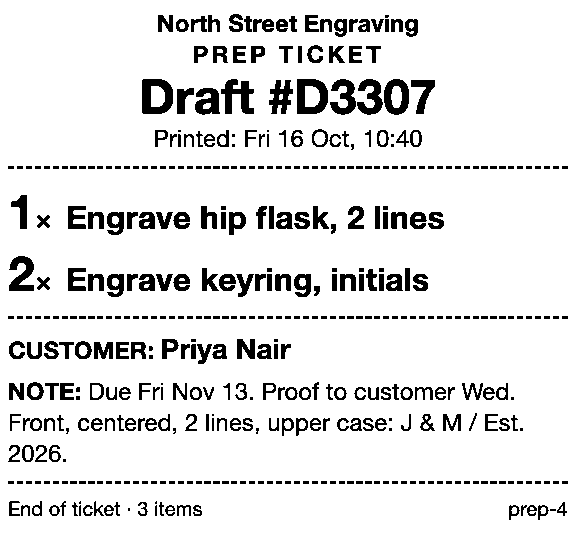
Prep Ticket’s job ticket is price-free, with the items, quantities, customer and notes, so the “APPROVED v2” line reaches the bench. It prints through the iPad’s print dialog (AirPrint).
Next step
Save the next proof job as a draft before the artwork goes out.
Neither app is on the Shopify App Store yet. Get early access and we’ll email you when each is ready to try in your store.
Pick one app or both
Thanks. You’re on the list, and we’ll email you when each app is ready to try.
Common questions
Can a Shopify customer approve a proof before they pay?
Can I attach a proof to a Shopify draft order invoice?
Can customers see Timeline comments on a draft order?
Can I take a deposit on a proof job?
What happens to the draft when the customer pays?
Read next
About Prep Ticket- Guide How to print a Shopify draft order from POS Shopify has no Print button for drafts. Every workaround, and what each one prints.
- Guide Shopify POS: how to print an order before the customer pays Create the order now with Mark unpaid, or keep it as a draft and print that instead.
- Guide Which printers can print prep tickets from Shopify POS? Which Star and Epson printers Shopify supports, and how POS apps print to them.
- Guide Recent cart or draft order: which to use in Shopify POS Recent carts delete after 24 hours by default. Drafts last a year unedited and can hold stock.
- Guide Shopify POS receipt code editor ends January 1, 2027: what to do The code editor ends January 1, 2027. What to check, rebuild and preview before you switch.
- Guide How to create a pickup order in Shopify POS Create a Shopify POS pickup order, mark it ready, notify the customer, and print a slip