
How to use custom sales in Shopify POS and find them in reports
Updated · 7 min read
By Invenire Studios, makers of Countermade
The short answer
Tap Add custom sale on the Shopify POS smart grid, enter the price and an optional title, and tap Add to cart. Staff need the Add custom sales permission. Because a custom sale’s Product title is None in reports, the POS total sales by product report leaves custom sales out until you remove its “Product title is not None” filter. Title every custom sale so you can tell them apart.
How do I add a custom sale in Shopify POS?
On the Shopify POS smart grid, tap Add custom sale, enter an optional title and the price, set the quantity and tax, then tap Add to cart. Use it for anything you haven’t set up as a product, like the display easel in Shopify’s painting example. Give it a title so it’s easy to find in reports.
- On the Shopify POS smart grid, tap the Add custom sale tile.
- Enter an optional title and the sale price.
- Adjust the quantity and choose whether the item is taxed.
- Tap Add to cart.
If the tile isn’t on your smart grid, add it: tap Add tile, choose it, then tap Save. A custom sale can also be the replacement item in an exchange.
Why can’t my staff use Add custom sale?
A staff member can’t use it when their POS role lacks the Add custom sales permission, or when the tile isn’t on the smart grid (add it as above). The permission sits in the Checkout section of POS permissions. Set it to Approval required and a manager with the manager approval and Add custom sales permissions enters their PIN to approve each one. Permissions go by role, so change the role.
Why does the “Product title is not None” filter hide custom sales in POS total sales by product?
A custom sale’s Product title, Product vendor and Product type are all None in reports, so every custom sale fails the report’s default filter. With the filter removed, all custom sales appear as one combined row until you split them by Product title at time of sale, where an untitled custom sale shows as “Custom sale”.
How do I report on custom sales in Shopify?
In Analytics > Reports > POS total sales by product, delete the “Product title is not None” filter and add the Product title at time of sale dimension. You don’t need a new report or an app, and Save as keeps the view for next month.
- In the Shopify admin, go to Analytics > Reports and open POS total sales by product.
- In the configuration panel’s Filters menu, click the trash icon next to Product title is not None.
- In the Dimensions menu, click the plus icon, search for Product title at time of sale, select it, then click Apply.
- Optional: click Save as to keep it as a custom report.
To see only custom sales, keep the filter instead: click is not and change it to is, click Select value, choose None and click Apply. Then add the Product title at time of sale dimension as in step 3, and click Save as. If you like, delete the Product title, Product vendor and Product type dimensions and drag Product title at time of sale to the top.
Merchants have asked about this on the Shopify Community, and older answers point to reports and filters merchants say they can no longer find. The steps above follow Shopify’s current retail sales reports help.
What should I call a custom sale so the report makes sense?
Use the same short title every time for the same kind of charge. The report splits custom sales by their exact title, so two spellings of one charge become two lines, and every untitled sale lands under “Custom sale”. Keep a short agreed list of titles by the register.
For example, a jeweler might agree on “Engraving”, “Ring sizing” and “Watch battery”, and ring up an engraving charge of US$25.00 as “Engraving”. If jobs move through stages, compare repair and service ticket apps. Job details, like the words to engrave, belong in a note on the order: see how notes work on Shopify POS orders and items.
Should I use a custom sale, a custom item on a draft, or a product?
Use a custom sale for a one-off the customer pays for at the counter. Use a custom item on a draft order when the job is made or paid later and priced per job (a quote in Shopify POS works the same way). Create a product for anything you charge again and again at a set price.
| Compared | Custom sale (POS) | Custom item (draft order) | “Service” product |
|---|---|---|---|
| Where you add it | The POS cart | A draft in the Shopify admin or the Shopify app | Created once in the admin, then sold like any product |
| In product reports | Left out of POS total sales by product until you edit its filter | Shopify says custom items don’t appear in product sales reports | Reported like any product |
| Best for | A one-off, paid now | A one-off made or paid later, priced per job | A charge you repeat, priced the same or per job on a draft |
Shopify’s own advice is “Whenever possible, create products in your admin instead of using custom items.” Products help Shopify calculate shipping rates and assign orders to locations. For a service product, leave Track quantity off, as Shopify suggests for services and made-to-order products. Since Shopify’s Spring ‘26 Edition you can override line-item prices on draft orders, so one service product can carry a different price for each job.
For a catalog item that’s out of stock, see special orders in Shopify POS. To send a payment link for a custom amount, see Shopify payment links for a custom amount.
How do I put a one-off job on a draft order for later?
Build it as a custom item on a draft order in the Shopify admin or the Shopify app, with a name, price and quantity, and say whether it’s taxable or a physical product. When the customer is ready, load the draft into the Shopify POS cart. Draft orders in Shopify POS need POS Pro.
- In the Shopify admin, go to Orders > Drafts and click Create order.
- Click Custom item.
- Enter the item name, price and quantity.
- Select Item is taxable and Item is a physical product if they apply, then click Add.
In the Shopify app, tap the Orders icon, the Add icon, then Create order. To add the custom item, open the draft from Draft orders, tap Add custom item, enter the name, price and quantity, and tap Save or ✓.
In Shopify POS, open the horizontal menu, tap Load draft order, then Load to cart. An admin draft’s custom shipping rate is removed when it loads. Every other draft action is in Shopify POS draft orders.
What are the limits of custom sales and custom items?
A custom item on a draft order has no image or clickable title and no product page, because it isn’t in your catalog. It isn’t tracked as inventory, doesn’t change your stock levels, and doesn’t appear in product sales reports. It can’t be used with automated fulfillment or shipping apps. A POS custom sale is left out of POS total sales by product until you remove the report’s filter.
How do I get a one-off job to the workshop and paid?
Build the job as a draft from your products (a service product priced for the job), print it for the workshop, and collect payment when the customer is ready. See how to print a draft from Shopify POS.
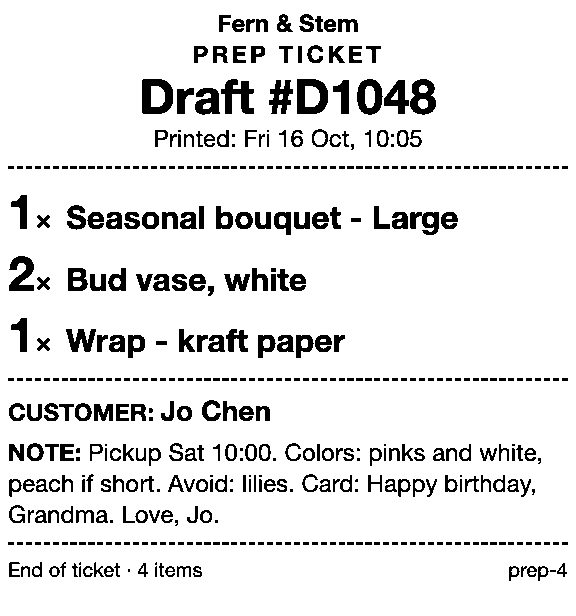
Prep Ticket, from Countermade (the Shopify POS apps from Invenire Studios), prints a ticket from a draft order in Shopify POS with item names, quantities, customer and notes. It leaves prices off, so the workshop gets just the job details. It prints through the iPad’s print dialog (AirPrint) and works with drafts made in POS or the Shopify admin. See how it works for made-to-order job tickets, or visit Prep Ticket.
 Page 1 of 1OptionsPrinterNo Printer Selected ›Copies1
When the customer will pay later, Pay Link, from Countermade, makes a payment link for the order, and they pay in full on Shopify’s own secure checkout, so staff never see card details. Staff see the total up front, with a note when checkout will add shipping. Turn on local pickup so the customer can choose it. Staff can also see when the link is paid. Compare each kind of Shopify payment link, or see Pay Link.
Both need Shopify POS Pro.
Next step
Open POS total sales by product in your Shopify admin and remove one filter to see your custom sales.
Prep Ticket and Pay Link aren’t on the Shopify App Store yet. Get early access and we’ll email you when each is ready to try.
Pick one app or both
Thanks. You’re on the list, and we’ll email you when each app is ready to try.
Common questions
Where do custom sales show up in Shopify reports?
Why does my report just say “Custom sale”?
Can I see only custom sales in Shopify reports?
Is a custom sale the same as a custom item on a draft order?
Do custom items on draft orders affect inventory?
Read next
About Pay Link- Guide How to take phone orders on Shopify without asking for card details Send the caller a checkout link by email or text, set pickup, then check it’s paid.
- Guide How to send a Shopify draft order payment link by text message Shopify only emails invoices. Copy the checkout link and text it from your own phone.
- Guide Shopify payment links explained: draft orders, Quick Sale and POS Every way Shopify bills by link, what each creates and where the paid order lands.
- Guide Taking a card by phone in Shopify: key it in or send a link Key a caller’s card or send a checkout link: when each fits, and how to turn keying off.
- Guide How to create a local delivery order in Shopify POS Local delivery at the POS checkout: the taps, the rules, and how to deliver phone orders.
- Guide How to take pre-orders at the counter in Shopify POS Shopify pre-orders are online only. Here’s the POS routine for dated counter and phone orders.