
Can you add a photo to a custom item on a Shopify draft order?
Updated · 6 min read
By Invenire Studios, makers of Countermade
The short answer
No. Shopify shows a custom item (a custom line item) in the order without an image, because it isn’t part of your catalog, and the Add custom item dialog has no image field. To show a photo, use one of three native routes: a product with the photo, set to Unlisted; a Files link in the invoice message; or the photo attached to the draft’s Timeline, where only staff see it.
Why doesn’t my custom line item on a Shopify draft order have a picture?
A custom item is a product, service or fee you type into one order, so it has no product page and no image. When you click Custom item, the Add custom item dialog asks for the item name, price and quantity, plus two optional checkboxes: Item is taxable and Item is a physical product.
A custom item has no image for the invoice email or packing slip to show. So the customer sees a name and a price but no picture, and so does whoever does the work. One merchant called it a “bland grey placeholder” on the invoice.
Shopify’s own advice is to create products instead of custom items whenever you can. Custom items aren’t tracked as inventory and don’t show in product sales reports (when a custom sale fits and how it shows in reports).
How do I show a photo for one-off work on a Shopify draft order?
Pick the route by who should see the photo: the customer, your staff, or both.
| Route | Effort | Who sees the photo | Best for |
|---|---|---|---|
| Unlisted product with the photo | Most: a product per job | Anyone viewing the order line (the product’s own photo) | Custom pieces and approved mockups for the order line |
| Files link in the invoice message | Less: upload and paste a link | The customer, as a link to click | One-off repairs, a quick look before paying |
| Timeline attachment | Least: drop the photo in a comment | Staff only | Condition photos, reference images for the bench |
For example, a jeweler logging a ring repair might attach the condition photo to the timeline, a framer could send the approved mockup as a Files link, and a maker selling a custom-size screen could make an Unlisted product for it. If the customer has to approve the mockup before paying, see getting a proof approved before the customer pays.
How do I add a product with a photo without listing it in my store?
Use the Unlisted product status, which Shopify added on October 21, 2025. An Unlisted product can be sold and added to a draft order, but it stays out of store search, collections, every sales channel and internet search. Anyone with the product’s link can still open its page, so use it for photos you’d happily show the customer.
- In the Shopify admin, go to Products > Add product.
- Enter a title (for example “Ring resize, size 7”) and the price.
- In the Media section, click Upload new and pick the photo, or drag it in.
- In the Inventory section, turn off Track quantity, or set Sell when out of stock to Continue selling when out of stock. By default Shopify stops selling a tracked product at zero stock, so customers can’t add it to their cart.
- In the Status section, choose Unlisted from the drop-down. Click Save.
- Open the draft order, click Product, search for the product, select it and click Done, in place of a custom item. In the Shopify app, tap Add product.
The draft’s product selection dialog marks it with an Unlisted label. In checkout and orders it behaves like any active product.
Can I send the customer a photo link with the Shopify invoice?
Yes. Upload the photo to Content > Files, copy its link, and paste it into the message when you send the draft’s invoice. Shopify’s files are meant for public access, so anyone who has the link can open it. Don’t upload private or sensitive photos.
- In the Shopify admin, go to Content > Files and click Upload files. In the Shopify app, Files is under the Content menu.
- Click the Link button beside the file to copy its URL.
- In the draft, click Send invoice, paste the link into the message, click Review invoice, then send it.
Files takes JPEG, PNG, WEBP, HEIC and GIF images up to 20 MB each. If you’d rather write your own message, click Share > Copy link and send the checkout link and the photo link together (texting a draft’s checkout link).
Showing a photo inside each invoice line needs line item properties, which the draft order screen has no field for (an app or the API adds them), plus an edited template (editing the invoice email).
Where do I keep a reference photo on a Shopify draft order that only staff should see?
Attach it to the draft order’s Timeline. Every note and comment there is internal, so customers never see it, and the photo stays on the draft for whoever picks up the job. It takes the least setup, and it’s the right route for condition photos, damage before a repair, or a sketch your staff need but the customer doesn’t.
- Open the draft order and scroll to Timeline.
- Click Leave a comment…, then click the paper clip icon and pick the photo. You can also drag it into the comment box.
- Click Post.
The Shopify app has the same paper clip. The photo won’t reach the invoice, so add a Files link if the customer needs it too.
How do I handle a custom item with a photo at the Shopify POS counter?
A Shopify POS custom sale takes a title and a price, with no image. Add a cart note that points to the photo, such as “Photo: see timeline”, then save the cart as a draft order (POS Pro). From the Shopify admin or app, attach the photo to that draft’s timeline or send a Files link.
- On the smart grid, tap Add custom sale, enter a title and price, and tap Add to cart.
- In the cart, tap the horizontal menu icon, tap Add Note, type the photo reference and tap Save.
- Tap the menu icon again and tap Create draft order.
The note shows on the order’s details screen, so staff know where the photo is. For the difference between order notes and item notes, see what prints where. For loading and updating drafts later, see saving and loading drafts in POS.
How do I print a job ticket with the photo note from Shopify POS?
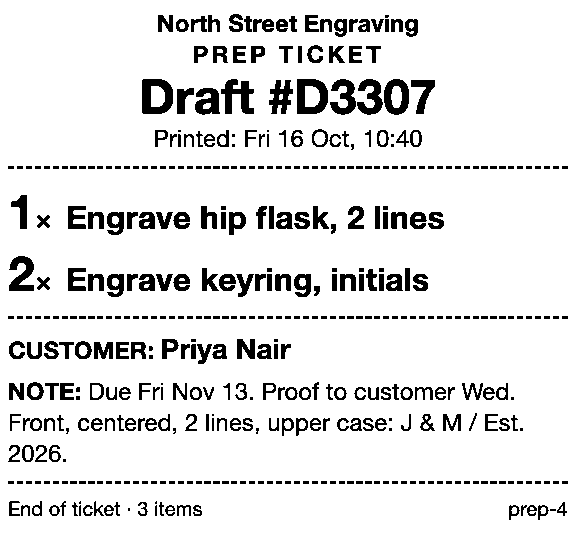
Once the job is a draft, Prep Ticket, from Countermade, the Shopify POS apps from Invenire Studios, prints a price-free ticket from it in Shopify POS. The note naming the photo goes to the bench on paper with the item names, quantities and customer.
It prints through the iPad’s print dialog (AirPrint) and works with drafts made in POS or the Shopify admin. See job tickets for engraving, framing and print work.
For a job you started at the counter, Pay Link, from Countermade, makes a payment link from the Shopify POS cart when the customer is ready to pay. They pay on Shopify’s own secure checkout, and your staff never see or type card details. Staff can see whether the link has been paid. Both apps need Shopify POS Pro.
Before staff share the link, Pay Link shows them the total, with a note when checkout will add shipping. Turn on local pickup so customers collecting in store can choose it.
Next step
Open the draft, decide whether the customer or only your bench needs the photo, and use that route. Prep Ticket and Pay Link aren’t on the Shopify App Store yet. Get early access and we’ll email you when each is ready to try.
Pick one app or both
Thanks. You’re on the list, and we’ll email you when each app is ready to try.
Common questions
Can you add an image to a custom item in a Shopify draft order?
Will an Unlisted product show up in my online store?
Can my customer see photos attached to a draft order’s timeline?
Is a Shopify Files link private?
Can Shopify POS add a photo to a custom sale?
Read next
About Prep Ticket- Guide How to print a Shopify draft order from POS Shopify has no Print button for drafts. Every workaround, and what each one prints.
- Guide Shopify POS: how to print an order before the customer pays Create the order now with Mark unpaid, or keep it as a draft and print that instead.
- Guide Which printers can print prep tickets from Shopify POS? Which Star and Epson printers Shopify supports, and how POS apps print to them.
- Guide Recent cart or draft order: which to use in Shopify POS Recent carts delete after 24 hours by default. Drafts last a year unedited and can hold stock.
- Guide Shopify POS receipt code editor ends January 1, 2027: what to do The code editor ends January 1, 2027. What to check, rebuild and preview before you switch.
- Guide How to create a pickup order in Shopify POS Create a Shopify POS pickup order, mark it ready, notify the customer, and print a slip