
How to charge the actual weight on a Shopify phone order
Updated · 7 min read
By Invenire Studios, makers of Countermade
The short answer
Shopify gives you three ways to charge meat, cheese or fish at its weighed price (the item’s price rather than shipping rates). Charge an estimate, then edit the order and invoice or refund the difference. For online store orders, authorize the card and capture the weighed amount later (no more than you authorized, within 7 days on Shopify Payments). Or price an unpaid draft once weighed, then send a link for the exact total.
Which way should I charge for a weighed order in Shopify?
For catch-weight goods (anything priced once it’s cut), the simplest routine for phone and advance orders is to weigh before taking any money: price an unpaid draft, then send the link. Authorize and capture suits online orders you’ll cut within the week, priced at the top of the likely weight. Estimate and adjust is the fallback when the customer must pay up front. For a part payment up front, see deposits by Shopify plan.
| Route | When the customer pays | If it weighs more | If it weighs less | Watch out for |
|---|---|---|---|---|
| Estimate, then edit the order | At order | Edit the order and invoice the balance | Refund the difference | A second payment request; local delivery orders can’t be edited; pickup orders can’t be edited in POS |
| Authorize, then capture | Card authorized when the customer orders in your online store, charged after weighing | You can’t capture more than you authorized: edit and invoice the rest | Capture the lower amount | 7 days on Shopify Payments; Expiring badge two days before; applies to all online store orders |
| Unpaid draft, priced after weighing | Once, after weighing | Set a custom line price | Set a custom line price or a line discount | The customer pays later; keep product prices locked once priced |
Selling December turkeys in weight bands is covered in Christmas orders for butchers, and weighing at the till in Shopify POS sell-by-weight apps compared.
How do I charge an estimate now and settle the difference after weighing?
Take payment for the estimated weight, cut and weigh, then edit the order in the Shopify admin. If it came in heavier, add the extra as a custom item and send an updated invoice for the balance. If it came in lighter, refund the difference. Either way, the customer sees a second transaction.
- From your Shopify admin, go to Orders and open the order. Click Edit.
- Weighed more: click Custom item, name it for the extra weight (for example, “Aged cheddar, extra 120 g”), enter its price, and click Add item.
- Weighed less: add a manual discount to the line instead.
- Review the changes and update the order.
- If money is owed, send the updated invoice with its checkout link (see sending a payment link for an existing order). If you owe the customer, refund the difference as below.
For example, a 1 kg estimate of a cheese at US$48.00/kg that cuts at 1.12 kg leaves US$5.76 to invoice.
To refund, open the order, click Refund and leave item quantities at 0. Choose the Refund method (original payment method, store credit or both), set the Refund amount to the balance the order summary shows, and click Refund.
Three limits apply. Local delivery orders can’t be edited. In-store pickup orders can be edited only in the Shopify admin or the Shopify app, not in Shopify POS. While a payment is Pending, you might be unable to edit items and discounts.
Can I authorize the card and capture the weighed amount later?
Yes, with manual capture, when the customer places the order in your online store. The card is authorized when they pay, and you capture the weighed amount later. The authorized amount is the most you can capture, and on Shopify Payments the authorization lasts 7 days, so authorize at the top of the likely weight.
Turn it on in Settings > Payments > Payment capture method > Manually, then Save. You can also ask Shopify to email you a day before an authorization expires. The setting covers every online store order, weighed or not; POS orders aren’t affected.
After weighing:
- Go to Orders and open the order.
- In the Authorized section, click Capture payment.
- Change the amount to the weighed price and click Capture.
Capture less than the order total and the order shows Partially paid. If the cut weighs more than you authorized, capture the authorization, then edit the order and invoice the difference as above.
The Expiring badge shows two days before the deadline. Once the authorization period ends, you might be unable to collect anything. What Shopify’s payment statuses mean explains the badges.
How do I price a draft order after it’s been weighed?
Save the order as an unpaid draft, weigh the cut, set each line to its weighed price, then send the customer the link. Nobody pays until the price is right, so there is no difference to chase and no second request.
Take the order. In Shopify POS, add each product at quantity 1, then add the customer and a note with the estimated weight (for example, “Aged cheddar, about 1 kg, cut Fri”). Tap the horizontal menu > Create draft order. Drafts in POS need Shopify POS Pro.
In the admin, use Orders > Drafts instead. Reserve stock on the draft if it’s tight.
Weigh and price. Quantities are whole numbers, so you can’t enter 1.12 as a quantity. Price the line instead:
- In the admin, go to Orders > Drafts and open the draft.
- Click the line’s price, then edit the Unit price.
- Enter the weighed price and click Done.
A custom price can go up or down and changes only this draft. For example, a 1 kg estimate at US$48.00/kg that cuts at 0.94 kg becomes US$45.12.
To price a lighter cut in Shopify POS instead:
- Tap Load draft order > Load to cart.
- Tap the item > Apply custom discount, enter the weighed amount in Price after discount, and tap Apply.
- Tap the horizontal menu > Update draft order.
Staff need the Apply custom discounts and Manage draft orders permissions. If it came in heavier, add the extra weight as an Add custom sale line, or set the custom price in the admin. See Shopify POS draft orders for every other draft action.
Send the link for the exact total. Price first, then send. In the draft’s Payments section, click Send invoice, or Share > Copy link and paste it into your own message. From POS, the drafts list has Email to customer. To text it, copy the link from the draft (sending a payment link by text).
When you send or share, leave Product prices on, as it is by default, so prices stay locked once you’ve priced the weighed line (why a payment link’s price changed). Don’t mark the draft Paid before the money arrives.
Turn on Pickup in store (Settings > Shipping and delivery > Additional delivery methods) so the customer can choose Pick up at checkout; see why checkout adds shipping.
How do I give the person cutting a list from a Shopify draft order?
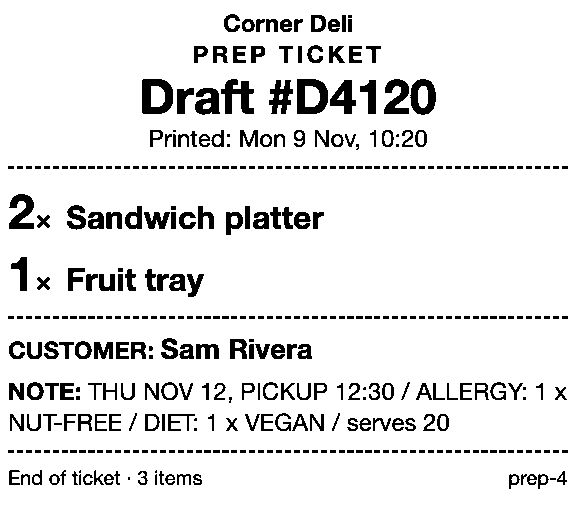
Print a ticket from the draft. It already holds the cut list: items, quantities, the customer and the note with the estimated weight, which is all the person at the block needs. Leave prices off, because the ticket is a working sheet that may travel with the order.
Prep Ticket, from Countermade (the Shopify POS apps from Invenire Studios), prints that ticket from a draft in Shopify POS: item names, quantities, customer and notes, with no prices. It prints through the iPad’s print dialog (AirPrint). See what a prep ticket is and printing a Shopify draft order from POS.
What does Pay Link add when you send the weighed total from Shopify POS?
Pay Link, from Countermade, shows staff the total up front, with a note when checkout will add shipping. Once the weighed draft is loaded in the POS cart, it creates a link for that total, and the customer pays the full weighed price in one go on Shopify’s own secure checkout.
A double tap makes one link, not two, and staff can see whether a link has been paid. Both apps need Shopify POS Pro. Turn on local pickup (see above) so a customer collecting in store isn’t charged shipping at checkout.
Neither app is on the Shopify App Store yet: join early access and we’ll email you when they’re ready to try.
Pick one app or both
Thanks. You’re on the list, and we’ll email you when each app is ready to try.
Common questions
Can I capture more than I authorized in Shopify?
How long can I wait to capture a payment on Shopify Payments?
Can I change an item’s price in a Shopify draft order?
Can I enter a weight like 1.12 kg as the quantity in Shopify?
Can I edit a local delivery order after weighing?
Read next
About Pay Link- Guide How to take phone orders on Shopify without asking for card details Send the caller a checkout link by email or text, set pickup, then check it’s paid.
- Guide How to send a Shopify draft order payment link by text message Shopify only emails invoices. Copy the checkout link and text it from your own phone.
- Guide Shopify payment links explained: draft orders, Quick Sale and POS Every way Shopify bills by link, what each creates and where the paid order lands.
- Guide Taking a card by phone in Shopify: key it in or send a link Key a caller’s card or send a checkout link: when each fits, and how to turn keying off.
- Guide How to create a local delivery order in Shopify POS Local delivery at the POS checkout: the taps, the rules, and how to deliver phone orders.
- Guide How to take pre-orders at the counter in Shopify POS Shopify pre-orders are online only. Here’s the POS routine for dated counter and phone orders.