
Why Shopify deleted your draft orders (and how to keep them)
Updated · 7 min read
By Invenire Studios, makers of Countermade
The short answer
Since April 1, 2026, Shopify has automatically deleted draft orders created on or after April 1, 2025 that go a year without an edit. A hold, quote or custom order nobody touched for a year can vanish from POS and the admin. To keep one, save a change before the year is up, or better, turn it into an order.
Does Shopify automatically delete draft orders?
Yes. Since April 1, 2026, Shopify automatically deletes draft orders created on or after April 1, 2025 after one year without an edit, and any edit resets the timer. Shopify announced the rule on March 24, 2025. Its stated reasons: a drafts list that shows only active draft orders, and better performance.
| Draft created | Covered by the one-year rule? |
|---|---|
| Before April 1, 2025 | No |
| On or after April 1, 2025 | Yes: removed after one year without an edit |
Which of my draft orders will Shopify delete, and when?
Any draft order created on or after April 1, 2025 that has gone a year without an edit. That includes drafts saved in Shopify POS with Create draft order. The year runs from the draft’s last edit, not from the day it was made, because any edit resets the timer. Shopify gives no exact removal day, so act well before the year is up.
For example, a draft created on June 2, 2025 and last edited on September 15, 2025 is due for removal from September 15, 2026 onward. Removals began on April 1, 2026, so any covered draft last edited more than a year ago is already past the one-year mark.
If a draft was edited within the last year, or created before April 1, 2025, and you can’t find it, check Orders > Drafts in the admin and the Sale type filter in POS first: see Shopify draft orders not showing in POS. For carts saved without Create draft order, see recent carts vs draft orders in Shopify POS.
What counts as activity on a Shopify draft order?
Shopify defines one thing: “Any type of edit to the draft order resets the timer.” Its help pages don’t say whether opening a draft, sending the invoice or the customer opening the link counts as activity. Don’t rely on any of those. Save a real change instead, such as a tag.
The safe ways to save a change:
- In the Shopify admin: go to Orders > Drafts and open the draft. In the Tags section, type a tag (separate tags with commas; each is limited to 40 characters), then click Save.
- In Shopify POS: load the draft, make the change, then tap the horizontal menu icon and Update draft order.
A status tag also tells the next person where the order stands. For developers, the Admin API records each draft’s last change as updatedAt.
Can I get a deleted draft order back?
Shopify’s help offers no way to bring back a deleted draft, and the orders export covers orders, not drafts. If the draft was paid before Shopify removed it, it became a regular order on your Orders page and is still there. Otherwise, rebuild the draft from whatever record you have of it.
Look for the invoice email you sent, the customer’s message, or a paper copy if you print drafts from POS.
To rebuild quickly, open a similar draft and click Duplicate, then change the customer and check prices. The copy keeps line items, customer, notes and tags, but not discounts or shipping rates.
What happens to a payment link I already sent?
The invoice link comes from the draft order: you send it with the invoice or copy it with Share. Shopify’s help gives that link no expiry of its own, and it doesn’t say what the link does once its draft is deleted. To be sure the customer can pay, send a fresh link from a new draft.
- Rebuild the draft, or duplicate a similar one (see the section above).
- In the admin, open the draft and click Share, then Copy link.
- Paste the link into your own message, or send the customer a new invoice.
For how each kind of Shopify link works, see Shopify payment links explained. To get it to a phone, see how to send a Shopify payment link by text. Other invoice errors are in why a customer can’t pay a draft order invoice, and for when to chase or cancel a link, see reminders for unpaid Shopify payment links.
How do I keep a long-lived draft order from being deleted?
Give every draft you need a next step before its year is up. Turn a layaway into a partially paid order, save a dated change to holds and custom jobs at each stage, let old quotes go and rebuild them on request, and delete what you no longer need. The table shows where to do each. Long-lead pre-orders need the same routine.
| Kind of draft | What to do | Where |
|---|---|---|
| Layaway or hold with money taken | Take the first payment and mark the order as partially paid. It becomes an order you collect against later. | POS: Split payment > Mark as partially paid > Mark as partial; later Collect payment |
| Hold with stock set aside | Reserve the items, set the expiry to the day the hold ends, and save a change (such as a status tag) at least every few months. | Admin: draft menu > Reserve inventory; Shopify mobile app: Reserve items |
| Custom order waiting on a maker | Save a change at each stage (proof sent, approved, in production, ready), such as a status tag. | Admin: Tags > Save; POS: Update draft order |
| Quote the customer hasn’t accepted | Let a year-old quote go. When they return, duplicate a similar draft and share a fresh link. | Admin: Duplicate > Save it as a new draft; Share > Copy link |
| Template draft you reuse | Duplicate it for each order instead of editing the master, and save a small change to the master on a set date. | Admin: Duplicate |
| Drafts you no longer need | Delete them yourself. | Admin: Delete draft order, then confirm; POS: Order > Drafts > vertical menu > Delete draft |
A layaway is the case where a draft is the wrong home. In some EU locations, such as France, Italy and Spain, Shopify POS can’t mark a sale as partially paid. For the options, see how to hold an item for a customer in Shopify POS and Shopify deposits by plan.
For the stages of a custom job, see special orders in Shopify POS. For quotes, see quotes in Shopify POS.
Check your drafts once a month in POS and the admin
- In Shopify POS: tap the Order icon, then Drafts, and use the Sale type filter (on the iPad it reads Channel; Admin shows drafts made in the admin).
- In the Shopify admin: go to Orders > Drafts.
For each draft you haven’t touched in months, decide: edit it, complete it or delete it. When you keep one, add a dated tag such as “checked-2026-10”. The tag is your edit, and it shows when someone last looked. For every other draft action at the counter, see draft orders in Shopify POS.
Does Shopify warn you before it deletes a draft order?
Shopify’s help describes no warning before an inactive draft is deleted, and no sign on a draft that it’s close to removal. The POS help page for drafts doesn’t mention the rule, so counter staff may not know about it. Tell your staff yourself, and treat the monthly check as your early warning.
When a draft goes to the maker or to payment
Countermade, the Shopify POS apps from Invenire Studios, has two apps for a draft order’s next step: Prep Ticket when the job goes to the maker, Pay Link when the customer is ready to pay. Both apps need Shopify POS Pro.
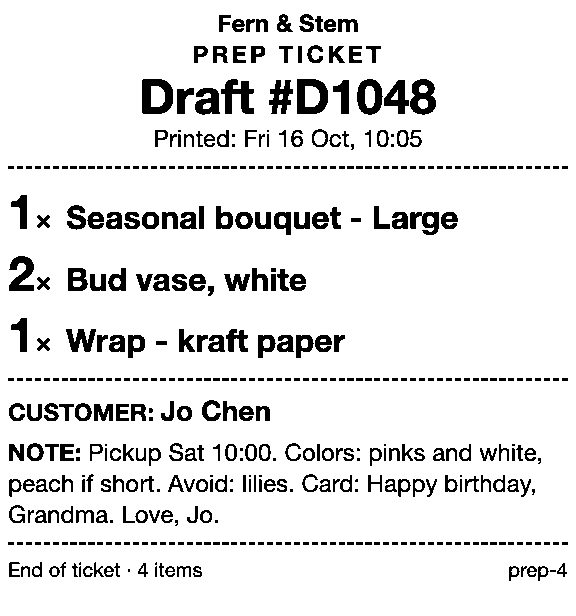
Prep Ticket prints a price-free prep ticket from a draft order in Shopify POS: item names, quantities, the customer and notes. It prints through the iPad’s print dialog to a printer the iPad can reach (AirPrint), and works with drafts made in POS or the Shopify admin. Print one when a custom job goes to the maker, so the maker gets the items, customer and notes without the prices.
Pay Link makes a payment link from the POS cart for the full amount, so the customer can pay as soon as they’re ready. They pay on Shopify’s own secure checkout, and staff never see or type card details. Staff see the total up front, with a note when checkout will add shipping. Turn on local pickup at the store so the customer can choose pickup. Staff can also see whether a link has been paid, and once the customer pays, the sale is a regular order on your Orders page, not a draft waiting out the year.
Next step
Open your drafts list today and tag or close out every draft you haven’t touched in months.
Prep Ticket and Pay Link aren’t on the Shopify App Store yet. Get early access and we’ll email you when each is ready to try.
Pick one app or both
Thanks. You’re on the list, and we’ll email you when each app is ready to try.
Common questions
Are draft orders made in Shopify POS deleted too?
Why did my Shopify draft order disappear?
Are draft orders created before April 1, 2025 deleted?
Do Shopify draft orders expire?
Does opening a draft order reset the one-year timer?
Read next
About Pay Link- Guide How to take phone orders on Shopify without asking for card details Send the caller a checkout link by email or text, set pickup, then check it’s paid.
- Guide How to send a Shopify draft order payment link by text message Shopify only emails invoices. Copy the checkout link and text it from your own phone.
- Guide Shopify payment links explained: draft orders, Quick Sale and POS Every way Shopify bills by link, what each creates and where the paid order lands.
- Guide Taking a card by phone in Shopify: key it in or send a link Key a caller’s card or send a checkout link: when each fits, and how to turn keying off.
- Guide How to create a local delivery order in Shopify POS Local delivery at the POS checkout: the taps, the rules, and how to deliver phone orders.
- Guide How to take pre-orders at the counter in Shopify POS Shopify pre-orders are online only. Here’s the POS routine for dated counter and phone orders.