
"No AirPrint Printers Found" on a Shopify POS iPad: how to fix it
Updated · 6 min read
By Invenire Studios, makers of Countermade
The short answer
The message means the iPad can’t see any AirPrint printer on its network. AirPrint needs a printer that supports it, connected by Wi-Fi or cable to the same network as the iPad. In a shop, look first at an iPad on guest or separate Wi-Fi, a Bluetooth or USB printer, or a receipt printer that’s paired inside Shopify POS but doesn’t support AirPrint. Fix the network first, then check the printer.
Why does my iPad say “No AirPrint Printers Found” when the printer is right there?
When you tap No Printer Selected in the print dialog, the iPad asks the network which AirPrint printers are nearby. The list comes back empty if the printer doesn’t support AirPrint, sits on a different network, or the network stops the iPad and printer from seeing each other. Being close to the printer doesn’t help.
Apple’s AirPrint help page sets two conditions: the printer must support AirPrint, and the printer and iPad must be “connected to the same Wi-Fi network”. Before anything else, make sure the iPad’s Wi-Fi is on and the printer is switched on and awake. Then, in a shop, start with these four checks.
| Cause | How to spot it | Fix |
|---|---|---|
| iPad on a different or guest network | The Wi-Fi name on the iPad isn’t the printer’s network | Join the iPad to the printer’s network, usually the main staff Wi-Fi |
| Printer connects by Bluetooth or USB | It’s paired to one device by Bluetooth or plugged into a USB port | Connect it by Wi-Fi or Ethernet if it has them; over Bluetooth or USB it can’t use AirPrint |
| The router keeps devices apart | Same network name, still an empty list | Allow devices to find each other, then restart the network |
| Private Wi-Fi Address on a managed or business network | The iPad can join but can’t reach anything local | Update iPadOS; if that fails, turn it off for that network |
Is my iPad on the same Wi-Fi network as the printer?
The iPad and printer must be on the same network. AirPrint only finds printers on the same Wi-Fi network as the iPad, and a customer guest network and a staff network count as two different networks, even when one router runs both. Check this first, because it’s the quickest cause to rule out.
- On the iPad, open Settings > Wi-Fi and note the network name with the check mark.
- Find which network the printer is on. Most printers show it in their settings menu or print it on a network report; the printer’s manual says how.
- If the names differ, join the iPad to the printer’s network (or move the printer), then open the print dialog again.
Shopify’s network setup guide for POS gives the same rule for its POS hardware: “VLANs, guest networks, and network segmentation can prevent these peripherals from being discovered by Shopify POS”. A few shop setups to look out for:
- Guest Wi-Fi. If staff iPads joined the customer network, move them to the staff network.
- A printer cabled to the router. In Shopify’s receipt printer setup guide, a network (LAN) receipt printer plugs straight into your router, so a cabled printer is on the same network as long as the iPad’s Wi-Fi is the router’s main network. It still has to support AirPrint to appear in the list.
- A 5 GHz-only network. Shopify notes that some Wi-Fi receipt printers can’t join networks that only broadcast 5 GHz, so check which band your printer supports.
Does my receipt printer work with AirPrint?
Only if its maker says it supports AirPrint and it’s connected by Wi-Fi or a network cable. Pairing a receipt printer in Shopify POS doesn’t add it to the iPad’s AirPrint list, so a printer can print every POS receipt and still not appear. That’s because a Shopify POS iPad has two separate ways to print.
- POS receipts go to a printer paired inside Shopify POS. You choose it in POS under Hardware, by tapping the printer and turning on Default receipt printer.
- POS apps that don’t print straight to a paired printer open the iPad’s system print dialog, which Shopify’s printing API docs for POS apps describe as “AirPrint on iOS”. That dialog lists only AirPrint printers.
Apple says AirPrint “works with Wi-Fi or wired network connections”, so a printer paired by Bluetooth or plugged in by USB can’t use AirPrint over that connection. A printer that also has Wi-Fi or Ethernet needs to be connected that way.
If your receipt printer won’t print from POS itself, see these fixes for a receipt printer that won’t print from Shopify POS. For buying advice, see which printers can print prep tickets from Shopify POS.
Could my router or Wi-Fi settings be hiding the printer?
Yes, if the iPad and printer are on the same network name and the list is still empty. Printers make themselves known with a small multicast DNS announcement on the local network. Guest networks and separate VLANs can stop that announcement reaching the iPad, and some router settings can too.
What to try:
- Put the iPad and printer on the main staff network, not a guest or isolated one.
- Ask whoever runs your network to let devices on the staff network find each other. Look for a setting that keeps Wi-Fi devices apart, often called client isolation.
- Turn off any VPN on the iPad and try again.
- Restart in order: the router, then any extenders or access points, then the printer, then the iPad.
If POS app tiles won’t open either, see fixes for POS apps that won’t load.
Should I turn off Private Wi-Fi Address on a POS iPad?
Only if the other checks haven’t worked and the iPad can join the network but can’t reach the printer or other local devices. An iPad uses a different private address on each network, and some business networks need changes to work with private addresses. Turning it off for that one network can restore access to local devices.
Apple’s Private Wi-Fi Address guide says that if a device “can’t access network resources” with a private address, install updates and try again before deciding. On iPadOS 18 or later:
- Install the latest iPadOS update and try printing again.
- Open Settings > Wi-Fi.
- Tap the More Info button next to the network name.
- Tap Private Wi-Fi Address, then choose Off.
If your iPads are managed by an MDM, Apple notes that businesses can turn this off for enrolled devices through a network profile, or update their Wi-Fi security to work with private addresses, so there’s no need to change each iPad by hand.
How do I print once the printer shows up?
Open the app’s print option, tap No Printer Selected, choose your AirPrint printer from the list, set the number of copies and tap Print (a printer icon) in the upper-right corner. If the list is still empty, go back through the network and printer checks above, starting with the Wi-Fi network name on the iPad.
Step by step:
- Tap Print in the app.
- Tap No Printer Selected and choose your AirPrint printer.
- Set the number of copies or other options.
- Tap Print (a printer icon) in the upper-right corner.
 Page 1 of 1OptionsPrinterNo Printer Selected ›Copies1
How do I print prep tickets from Shopify POS drafts?
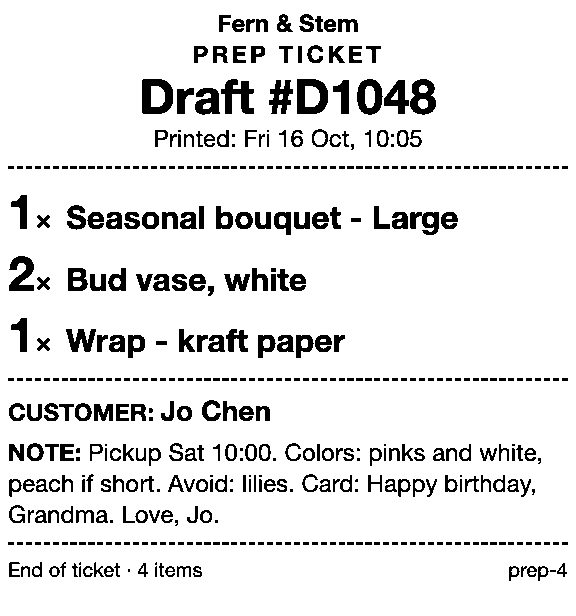
Prep Ticket, from Countermade (the Shopify POS apps from Invenire Studios), prints a prep ticket from a draft order in Shopify POS: item names, quantities, customer and notes, and no prices. It works with drafts made in POS or the Shopify admin and prints through the iPad’s print dialog, so Prep Ticket can print to the printer you just fixed.
Staff print from the draft, choose the printer in the iPad’s print dialog, and a price-free ticket is sent to it. If no printer is found, Prep Ticket tells staff “No printer found. You can use the system print dialog instead.” and offers Open print dialog.
A prep ticket suits orders made up in the back, such as a bouquet, a cake or a gift basket. For the native options, see every way to print a draft order from POS.
Next step
Prep Ticket needs Shopify POS Pro and isn’t on the Shopify App Store yet. Join early access and we’ll email you when it’s ready to try in your store.
Get early access to Prep Ticket
Thanks. You’re on the list, and we’ll email you when Prep Ticket is ready to try.
Common questions
Why can Shopify POS print receipts but my iPad finds no AirPrint printers?
Can a Bluetooth printer use AirPrint?
Why does the printer show on one iPad but not another?
Will turning off Private Wi-Fi Address fix it?
Read next
About Prep Ticket- Guide How to print a Shopify draft order from POS Shopify has no Print button for drafts. Every workaround, and what each one prints.
- Guide Shopify POS: how to print an order before the customer pays Create the order now with Mark unpaid, or keep it as a draft and print that instead.
- Guide Which printers can print prep tickets from Shopify POS? Which Star and Epson printers Shopify supports, and how POS apps print to them.
- Guide Recent cart or draft order: which to use in Shopify POS Recent carts delete after 24 hours by default. Drafts last a year unedited and can hold stock.
- Guide Shopify POS receipt code editor ends January 1, 2027: what to do The code editor ends January 1, 2027. What to check, rebuild and preview before you switch.
- Guide How to create a pickup order in Shopify POS Create a Shopify POS pickup order, mark it ready, notify the customer, and print a slip